QR Code Photo Sharing: Share an Album With One Scan (2026)
Last updated: October 18, 2026
QR code photo sharing turns a share link into a square anyone can scan with a phone camera - no app, no account, nothing to type. In 2026 the third-party generator step is usually unnecessary: Google Photos has built QR codes into album sharing since May 2025, and Viallo, a private photo sharing platform that stores photos at full resolution with no AI scanning, downloads its code as a print-ready 512-pixel PNG. The part most guides skip is the permission behind the square: the same code can open a gallery people only look at, or one they can add their own photos to, and you choose which when you create the link.

Why QR Codes Changed Photo Sharing
Before QR codes, sharing event photos meant one of three things: creating a group chat that nobody asked for, posting publicly on social media, or emailing links that half the guests would never open. QR codes removed the friction. A guest points their phone camera at a code, taps a link, and they're looking at photos. No download. No login. No group chat overload.
QR code photo sharing works by encoding a URL into a scannable pattern that any modern smartphone camera can read. When someone scans the code, their phone opens the URL - which can be a shared photo album, an upload page, or a gallery. The QR code itself is just a delivery mechanism for a link. What matters is what's on the other end of that link, and what the person on the other end is allowed to do when they get there.
The QR Code symbology was published by Denso Wave in 1994 and standardized internationally as ISO/IEC 18004, which is why the same square works on Android and iOS without any per-vendor app. iPhones have scanned codes straight from the Camera app since iOS 11 in 2017, and Android phones from roughly 2018 onward do it either in the stock camera or through Google Lens. That is the whole reason this technique works at an event: you are not asking anyone to install anything, you are using a decoder that shipped with their phone.
The approach took off at weddings in 2024 and has since spread to corporate events, family reunions, birthday parties, real estate open houses, and school events. The appeal is universal: it works across iPhone and Android, requires zero technical skill from guests, and can be printed on anything.
How QR Code Photo Sharing Works
QR code photo sharing works by encoding a photo album's web address into a scannable square. A guest points their phone camera at it, taps the notification, and the album opens in their browser. The code carries no photos and no permissions of its own - everything depends on what the link behind it allows.
Every QR code photo sharing setup has three parts:
- A photo album or upload page - the destination where photos live. This can be a Google Photos album, a Viallo share link, a dedicated event app, or any web page.
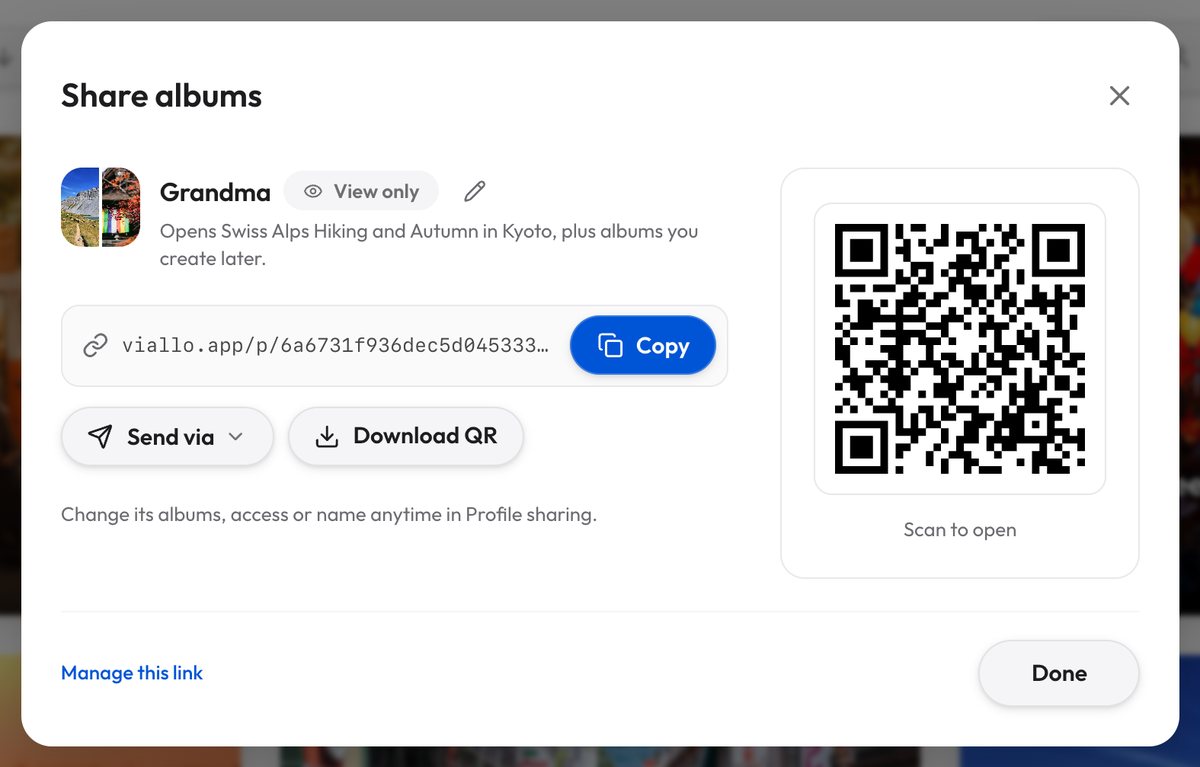
- The code itself - and in 2026 the thing holding your photos usually makes it for you. Google Photos generates a QR code for an album; Viallo puts one on the share card with a download button next to it. A separate generator is a fallback for platforms that ship none, not a step everyone has to take.
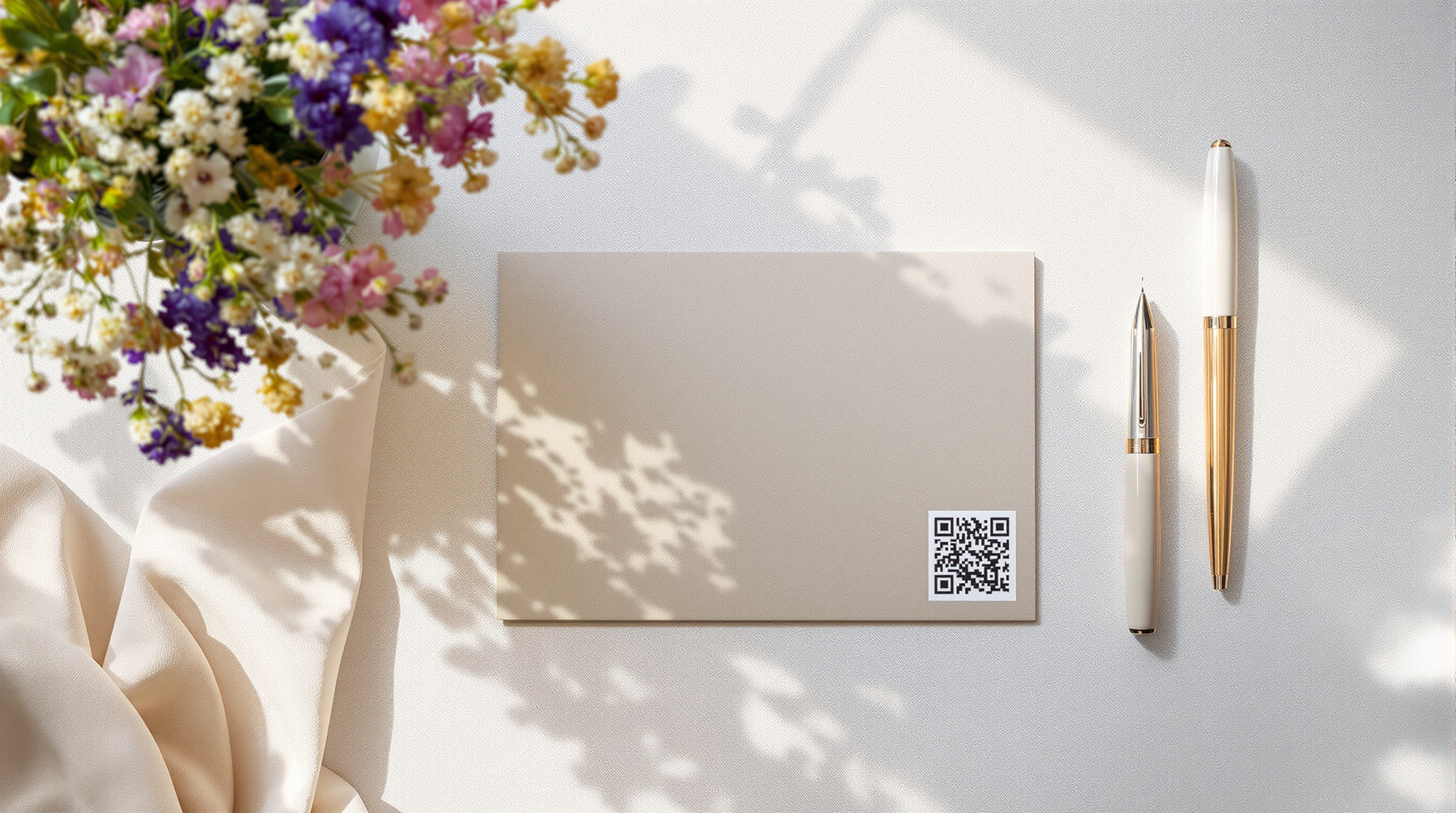
- A display method - how you show the code to guests. Printed cards, a sign by the entrance, a slide between speeches, or a screenshot dropped into the group chat all work.
The process takes under five minutes: create the album, open the share panel, and the code is already there waiting for you on a computer, one tap on QR code away on a phone. Print it, prop it up, or send it. The step people still write into guides - copy the link, open a QR website, paste, download - is now the exception rather than the rule, and it is worth checking your own app before you go looking for one.
Method 1: The QR That Comes With the Link
The cheapest QR code is the one your photo app already generates, and most of the big ones now do. This method costs nothing, adds no new account, and keeps the photos wherever they already live. What it cannot do is change what that platform asks of your guests.
With Google Photos: Google added QR code album sharing on 28 May 2025, as part of the app's tenth-anniversary release, and described it as a way to let people view or add photos. Open the album, tap the share icon, and choose "Show QR code"; scanning takes the other person into that shared album inside Google Photos. The split worth understanding is between those two verbs. Looking is fine from a link - Google's support page says that alongside sharing with people who have an account, "for everyone else, you can create a link to share". Adding is where the account appears: a contributor has to join with a Google account unless the album has Collaborate on, which lets anyone with the link add. That is worth knowing before you print a hundred cards. It is the same distinction covered in detail in what each platform requires before someone can upload.
With iCloud Shared Albums: Apple ships no QR generator at all, so this is one of the few remaining cases where a third-party tool is genuinely the answer. It also carries a trap worth naming. If you build the code from the "Copy iCloud Link" option, Apple's own iCloud User Guide states that iCloud Links automatically expire after 30 days (checked 29 July 2026), so a printed code stops working a month after the event - the same expiry problem that catches people out across every platform. Generate the code from the album's Public Website link instead, which does not expire, and remember a Shared Album left on the format that predates iOS 27 still caps images at 2048 pixels on the long edge, where one created or upgraded since 14 September 2026 keeps the original.
The verdict: for a birthday where everyone already lives in Google Photos, the built-in QR code is the right answer and costs you nothing. It stops being the right answer the moment part of your guest list does not have a Google account, will not make one, or is holding an iPhone and has never opened the app. That is most weddings and most family gatherings, which is why the next two methods exist.

Method 2: Dedicated Event Photo Apps
Several apps are built specifically for event photo collection via QR codes. The most popular include GuestPix, WedUploader, GuestCam, and Wedibox. These generate a QR code automatically when you create an event, and guests can both view and upload photos.
The advantage is that they handle the QR code generation for you and include features designed for events - guest uploads, digital guestbooks, slideshows, and sometimes moderation tools. Almost all of them charge once rather than monthly, and published one-time pricing spans roughly $19 to $49 across the main vendors (PixBearer $19, WedUploader $39, GuestPix and Wedibox $49, checked July 2026). Free tiers exist, usually with watermarks or photo caps.
The downsides are worth considering:
- Most are single-event tools. Once the event is over, your access may be limited or the photos may be deleted after a set period, commonly 30 to 90 days.
- Some compress photos to save on their own storage costs. If you care about sharing photos without compression, check the fine print.
- Privacy policies vary widely. Some event apps share usage data with marketing partners or retain uploaded photos beyond the event period.
- Many are wedding-specific, which means the branding and language feel wrong for a corporate event, a family reunion, or a sports tournament.
- Several advertise "no signup" and then ask the guest for a name before the upload button appears. It is worth scanning your own code from a phone that has never used the app before you commit to it.
The verdict: if a live slideshow on the projector or a digital guestbook is genuinely part of the plan, an event app is the better choice, because those features are the product and Viallo does not have them. If what you want is the photos, and you expect to still want them in three years, an event tool is the wrong shape - the event is its unit, and the event ends.
Method 3: A Private Album With a Built-In QR Code
Viallo is a private photo sharing platform that creates album links anyone can open in a browser without downloading an app or creating an account. Photos are stored at full resolution with no AI scanning, and the share card carries the QR code, the address, a copy button and a download button in one place. It is the same approach as sharing photos without making anyone download an app, with the link wrapped in a square so nobody has to type it.
Here is the whole sequence:
- Open the Albums page, tap Share, the button sitting next to New Album, and choose Share albums. (The same thing lives in Settings, under Profile sharing.)
- Pick the albums this link opens. One album, three albums, or select all of them for your whole library.
- Choose what people can do with it: View only, or Can add photos.
- Name the link under "Who is this link for?" - "Sarah", "Reception", "Work" - if you expect to make more than one. Only you see the name; it is there so you can tell your links apart six months later.
- Create the link. The next screen shows the QR code, the address, and a sentence telling you exactly what you just made.
- Download the QR as a print-ready PNG and put it wherever people will be. It saves as a 512 by 512 pixel image with an opaque white background and a 32-pixel quiet zone around the code, at error-correction level M. Those three details are not decoration: the on-screen code renders at 164 pixels or less and would print blurry, and a transparent PNG dropped onto a dark background reads as dark-on-dark and stops scanning altogether.
One code can cover several albums. This is the part that has no equivalent at Google Photos, iCloud or any event app I have looked at: one link and one QR can open a chosen set of albums, and the albums you left unticked are not reachable from that address - not by browsing, not by guessing. For a season of matches or a family that runs one album per trip, that is one printed square instead of five.
Guests who scan a "Can add photos" code get the albums you picked, open one, and tap Add photos. They are not asked to make an account, install anything or type a name, and the files go up at full resolution with a 500 MB per-file ceiling. When photos land, the owner gets an email and a push notification, batched so a hundred guests do not produce a hundred pings.
The free plan covers 2 albums, 200 photos and 10 GB, which is enough for one event. Plus is $6.99 a month or $69.99 a year for 20 albums, 5,000 photos and 200 GB; Pro is $17.99 a month or $179.99 a year and raises storage to 1 TB (current plans and limits). Curated links, the QR code and guest contribution work on every plan, including the free one. As many people as you like can add photos; what actually bounds the collection is the owner's storage plan, because guest uploads count against it.
A QR Code People Can Look At, and a QR Code People Can Add To
The permission belongs to the link, not to the square. Two codes printed from the same album can behave completely differently, and nothing on the paper tells you which is which. The choice is made when the link is created: View only means people browse, and Can add photos means they browse and upload. A scanner never sees the difference until they go looking for the Add photos button, so the labeling is your job, not the code's.
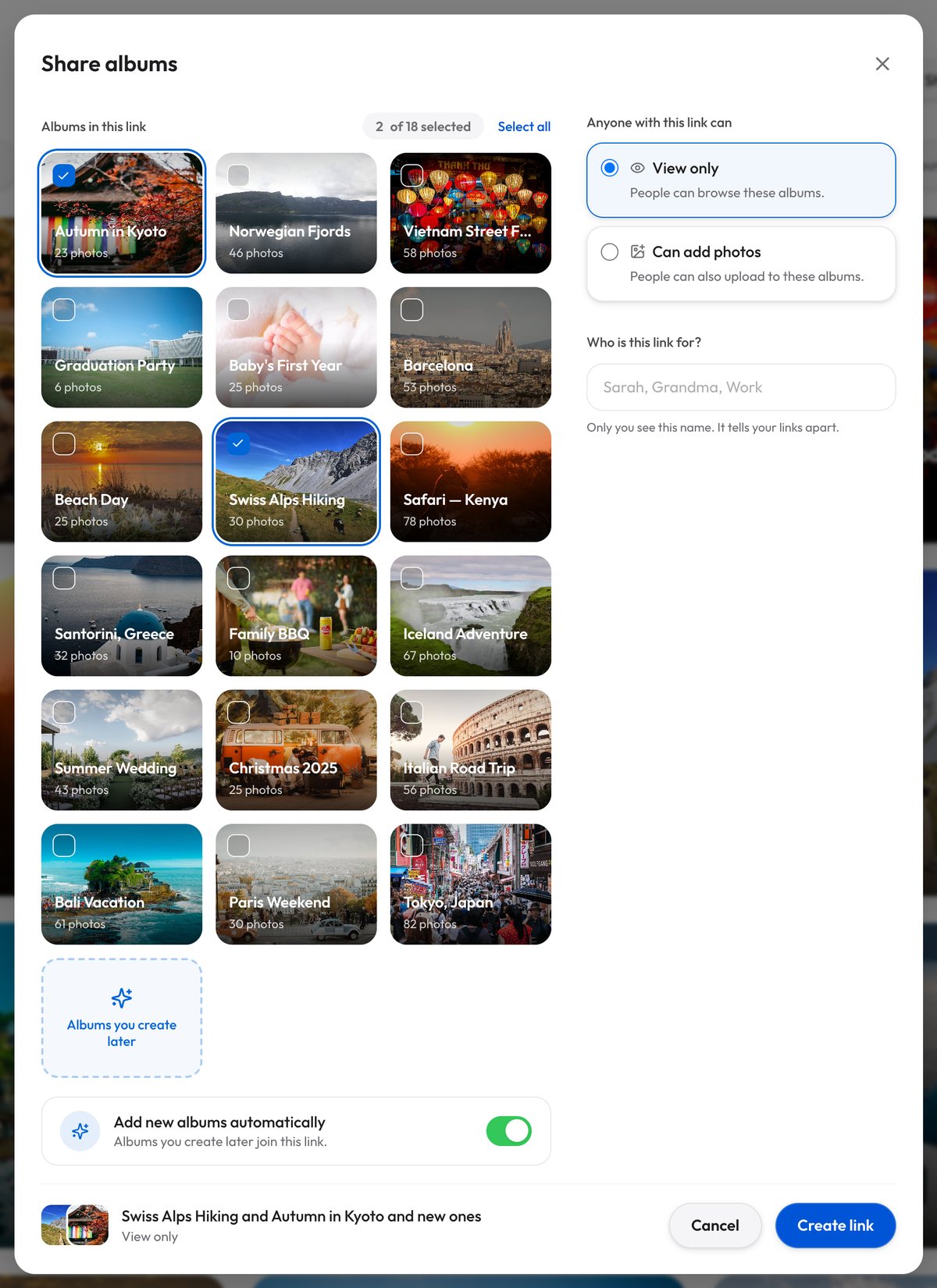
The two are not symmetrical, and the asymmetry is deliberate. A view-only link can be left open to your entire library, including albums you create later. A contribute link always names its albums: you pick at least one, it opens only the albums on its list, and an album you create later is added to that list only while the Add new albums automatically switch is on. A contribute link with no albums picked is refused in the browser, again when the link is saved, and a third time when a file actually arrives. The switch starts on, so turn it off when a contribute code should stay with the albums you picked.
In practice, most events need one code, not two. A Can add photos link includes viewing, so guests who only want to look simply look. Print two only when part of your audience must not be able to add anything - a code on a public-facing display, say, versus the one on the tables. Either way you can change a link's permission afterward, or revoke it, and revoking stops it immediately, even for an upload already in progress. There is more on the social side of this in how to run an album everyone adds to.
Which Method Should You Use
Use the QR code your photo app already makes. Google Photos has built one into album sharing since May 2025, and Viallo downloads its code as a print-ready PNG. Choose a dedicated event app only if you want a slideshow or a guestbook, and choose a third-party generator only when your platform ships no QR code at all.
| Feature | Google Photos | iCloud Shared Albums | Event apps | Viallo |
|---|---|---|---|---|
| Cost | Free (15 GB shared with Gmail and Drive) | Free, counts against iCloud storage | Free tier, or about $19-$49 once per event | Free (2 albums) |
| QR code built in | Yes, since May 2025 | No, generate your own | Yes | Yes, with a PNG download |
| Account needed to look | No, with a share link | Email address on an album upgraded for iOS 27, or the public website link | Usually no | No |
| Can guests upload by scanning? | Yes, with a Google account | Only subscribers; an email address on an upgraded album, an Apple Account on any other | Yes, often after typing a name | Yes, with nothing to type |
| One code, several albums | No, one album per code | No, one album at a time | No, built around one event | Yes, you pick the set |
| Link expiration | Never for an album link | iCloud Links stop after 30 days | Varies (30-90 days typical) | No expiry date; works until you revoke it |
| Full resolution | Depends on upload setting | 2048px long edge on an album not upgraded for iOS 27 | Often compressed | Yes |
| Photo privacy | AI scanning active | Apple-hosted, not used for advertising | Varies by app | No AI scanning |
| Works beyond one event | Yes | Yes | Usually no | Yes |
For a casual party where everyone already uses Google Photos, the built-in QR code is the better choice and costs nothing. For a wedding where a live slideshow or a digital guestbook is genuinely part of the plan, an event app earns its one-time fee. For collecting photos from people who will not install an app or sign into anything - and for still having the album a year later, rather than however long the vendor's retention window happens to run - Viallo with its own QR code is the better choice, and it is the only one of the four where a single square can open several albums at once.
Tips for Displaying Your QR Code
The QR code itself is easy to generate. Getting people to actually scan it takes a little thought:
- Print it large. A QR code should be at least 2 inches (5 cm) square for reliable scanning from arm's length. For a card on a table, 3 inches is better. For something people read from across a room, go 8 inches or larger.
- Add a label. A QR code by itself does not tell anyone what it does, and this matters twice over now that a code can mean two different things. Print "Scan to see the photos" above a view link, and "Scan to add your photos" above a contribute one. People who scan the wrong code usually give up rather than go looking for the other one.
- Print the address only if it is typeable. The classic advice is to put the URL underneath as a fallback, and it is good advice for a short link. It is useless for the long random strings most private links use - Viallo's are 32 hex characters, which is exactly why they cannot be guessed. When the address is unreadable, the better fallback is one person who has it on their phone and can AirDrop or text it.
- Place it where people linger. The best spots are tables (at weddings or dinners), the bar area, the entrance and exit, and the bathroom. People scan when they have a moment of downtime, not when they are actively socializing.
- Test it before the event. Print the code, scan it with your phone, and make sure it opens what you think it opens. Test with both iPhone and Android, and if it is a contribute link, actually send a photo through it once.
- Keep the white border. QR codes work best as black on white, and scanners need the blank margin around the pattern as much as the pattern itself. Viallo's downloaded PNG bakes that margin in and paints the background opaque white for exactly this reason. Avoid colored backgrounds, glossy surfaces that cause glare, and cropping the code tight to save space.
Beyond Weddings: Other Uses for QR Code Photo Sharing
QR code photo sharing started at weddings but the approach works anywhere you need to share photos with a group, and it is one of every way to collect photos from a group:
- Family reunions: Print a QR code on the invitation or display it at the gathering. Everyone's photos end up in one album instead of scattered across five group chats.
- Sports teams: Coaches put a code in the dugout or locker room. A contribute link can cover a whole season's worth of albums at once, so parents scan the same square every week. With Add new albums automatically on, each new match album joins the link as you create it, and editing a link does not change its address, so the printed code keeps working.
- Real estate: Agents place a QR code at an open house linking to a private photo gallery of the property. Interested buyers revisit the photos later without needing to request them. Keep this one view-only.
- Graduations: Display a code at the ceremony or party. Relatives who could not attend scan later to see the photos.
- Travel groups: On group tours or trips with friends, a code taped to the fridge of a shared rental collects everyone's photos in one place.
If you organize events regularly, the setup worth doing once is a single contribute link across the albums you keep reusing, with the PNG saved somewhere you can find it. Unlike an event app, whose retention window starts counting down the day after the party, the link has no expiry date and no download deadline: it works until you revoke it, and the photos stay while the account is active.
Frequently Asked Questions
What is the best app for QR code photo sharing at a wedding?
For a wedding, Viallo is the better choice, because guests can scan and add photos with no account, no app and no name to type, and the code downloads as a print-ready PNG rather than a screenshot. GuestPix and Wedibox are worth their one-time fee if a digital guestbook or a live slideshow is genuinely part of the plan. Google Photos now generates album QR codes itself, which is excellent when every guest already uses Google Photos, and friction the moment one of them does not.
How do I make a QR code for my photos?
Look inside the app holding the photos first, because most now generate the code for you. In Google Photos, open the album, tap the share icon and choose "Show QR code". In Viallo, open Albums, tap Share, choose Share albums, pick which albums the link opens and tap Create link, and the share card gives you the code plus a Download QR button that saves a 512-pixel PNG. Use a separate QR generator only for platforms that still ship none, such as iCloud Shared Albums.
Is it safe to share photos through a QR code?
A QR code is exactly as safe as the link inside it, so the real question is what that link does. A Viallo share link is a 32-character random address that cannot be guessed, and revoking it stops it working immediately, even for an upload already in progress. A Google Photos album link behaves the same way: whoever holds it can view. Apple takes the opposite approach with iCloud Links, which stop working after 30 days whether you wanted that or not.
What is the difference between a QR code photo app and a regular photo sharing app?
QR code photo apps like GuestPix and WedUploader are built for one event. They generate a code, collect guest uploads, and often add event features like guestbooks and slideshows, but many limit access or delete the photos 30 to 90 days afterward, so check the retention window before paying. Regular photo sharing apps like Viallo and Google Photos are ongoing platforms where the photos stay while the account is active, and both can be used with a QR code for the same scanning experience.
Can a QR code let people add photos, not just look at them?
Yes, when the link behind the code carries upload permission. In Viallo that is decided when the link is created - View only, or Can add photos - and a can-add-photos link only ever covers the albums you picked, plus albums you create later if you leave Add new albums automatically on. Guests scan, open an album and tap Add photos without making an account or typing a name. Google Photos can collect guest photos too, but the person adding needs a Google account unless Collaborate is on, and iCloud Shared Albums need an email address on an album upgraded for iOS 27 and an Apple Account on any other. Viallo's version works on every plan, including the free one.