Turn Your Trip Into an Instagram Story Sticker
Last updated: October 20, 2026
A trip sticker is a transparent image you lay over your own photo in an Instagram story: the places, days and kilometers of one trip, drawn from a Viallo album, with no background, no logo and no link. You open the studio from the album's Share window, from its ⋮ menu or from one of its photos, pick a design, preview it on a photo, choose an ink or a color of your own, then save it or send it to Instagram through the phone's share sheet and place it yourself.
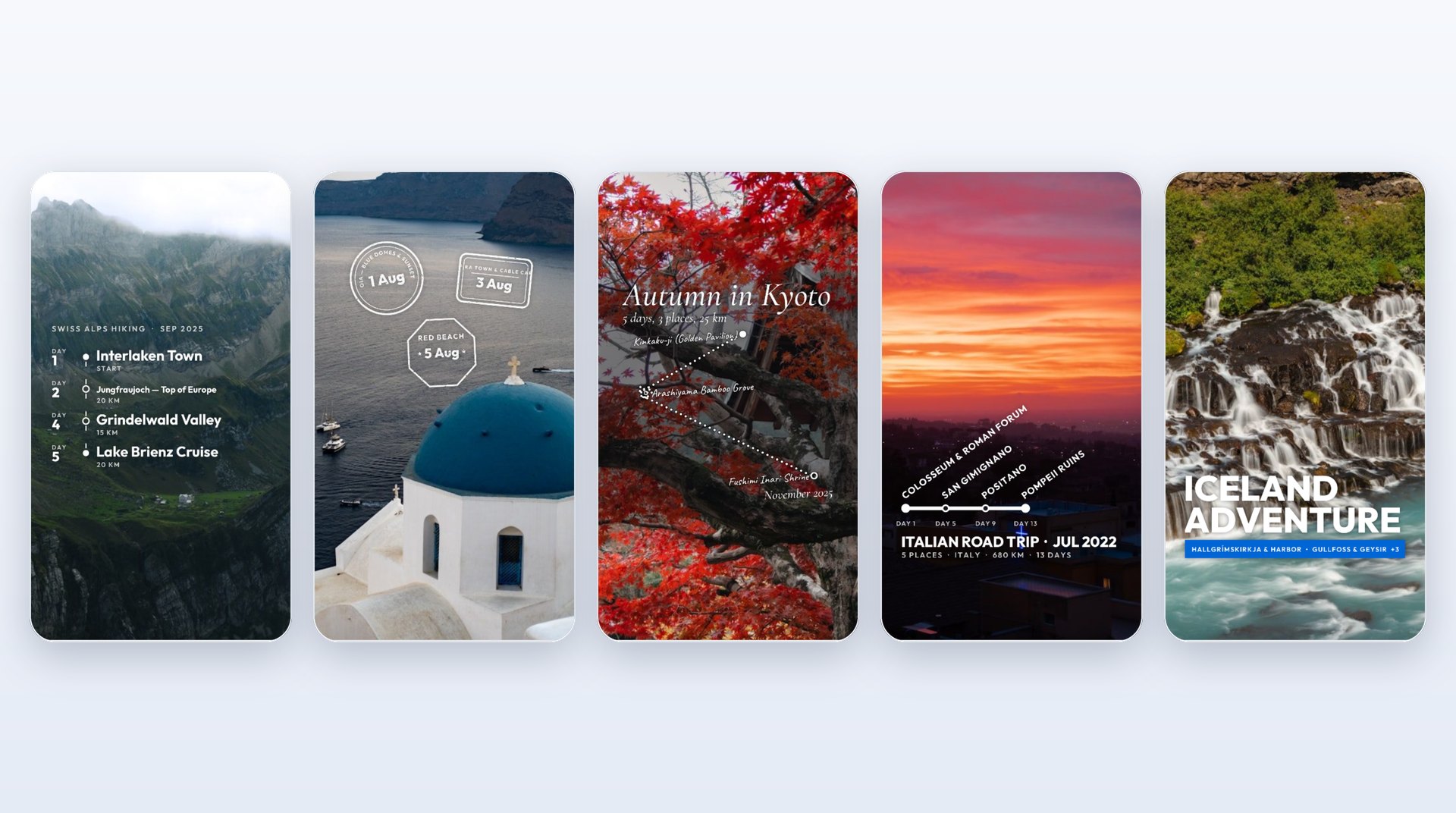
What a trip sticker is
Instagram's own stickers know one place at a time: a location tag, a time, a temperature. A trip has several places, a start and an end, and a distance between them. The trip sticker puts that on one transparent layer, built from the album you already made of the trip, so the photo underneath stays yours and the sticker only adds the summary.
The file the studio hands over:
- It is a transparent PNG of the sticker alone. The photo you preview it on is not part of the file, so you can put the sticker on any photo or video in your story, not only the one from the album.
- It carries no Viallo logo, no address and no link. The album stays private, and nobody can reach your photos from the sticker.
- It is drawn on your phone or computer. The studio makes the image in the browser from data the app already has, and uploads nothing.
What it is built from
You do not have to type anything into a trip sticker. Every word and number on it comes from the album: its title, the names of its places, the dates of the first and last photo, the countries the photos were taken in, and the distance and the number of days between them. Viallo works those out from the location and time your photos already carry, and a photo without a location still counts toward the photos and the dates. It is the same information it uses to group an album by place, which organizing photos by location explains.
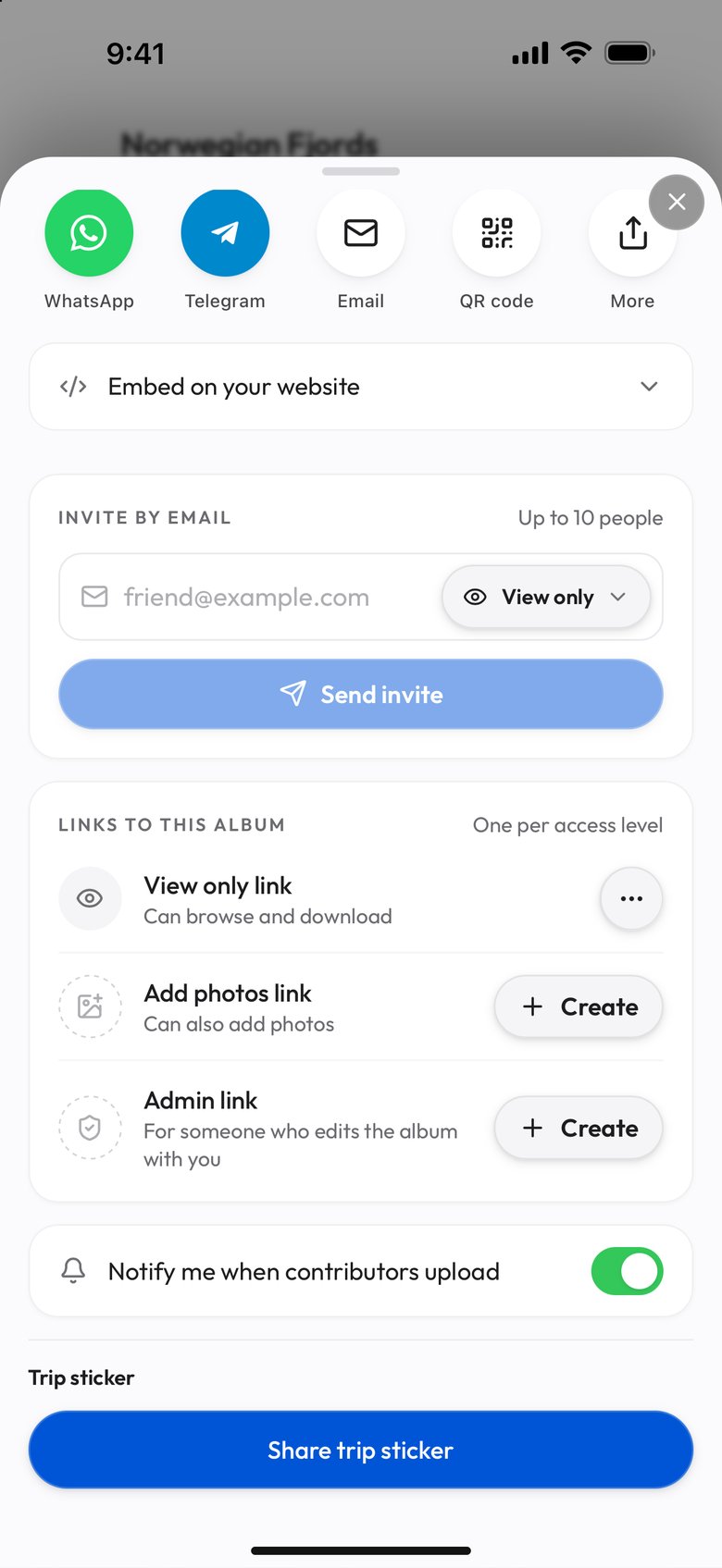
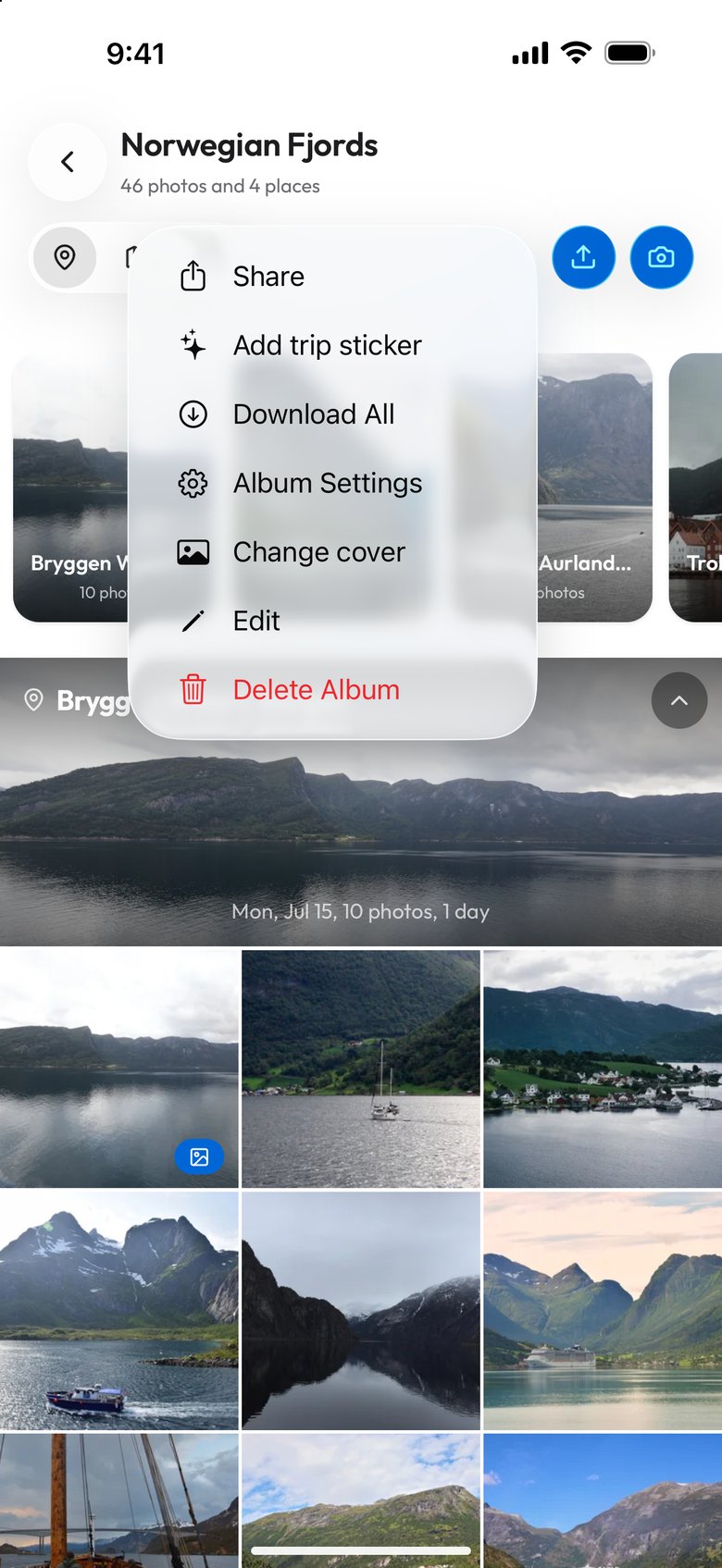
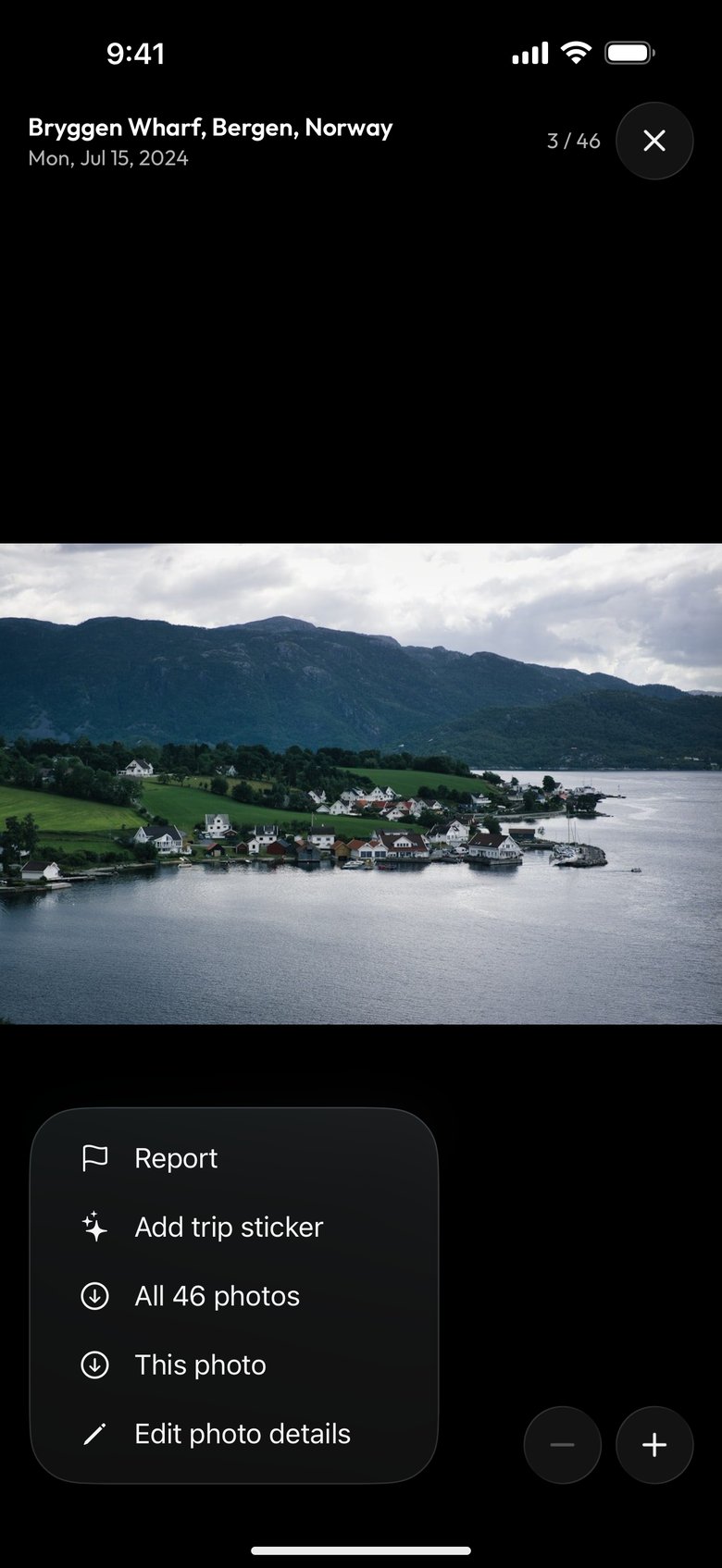
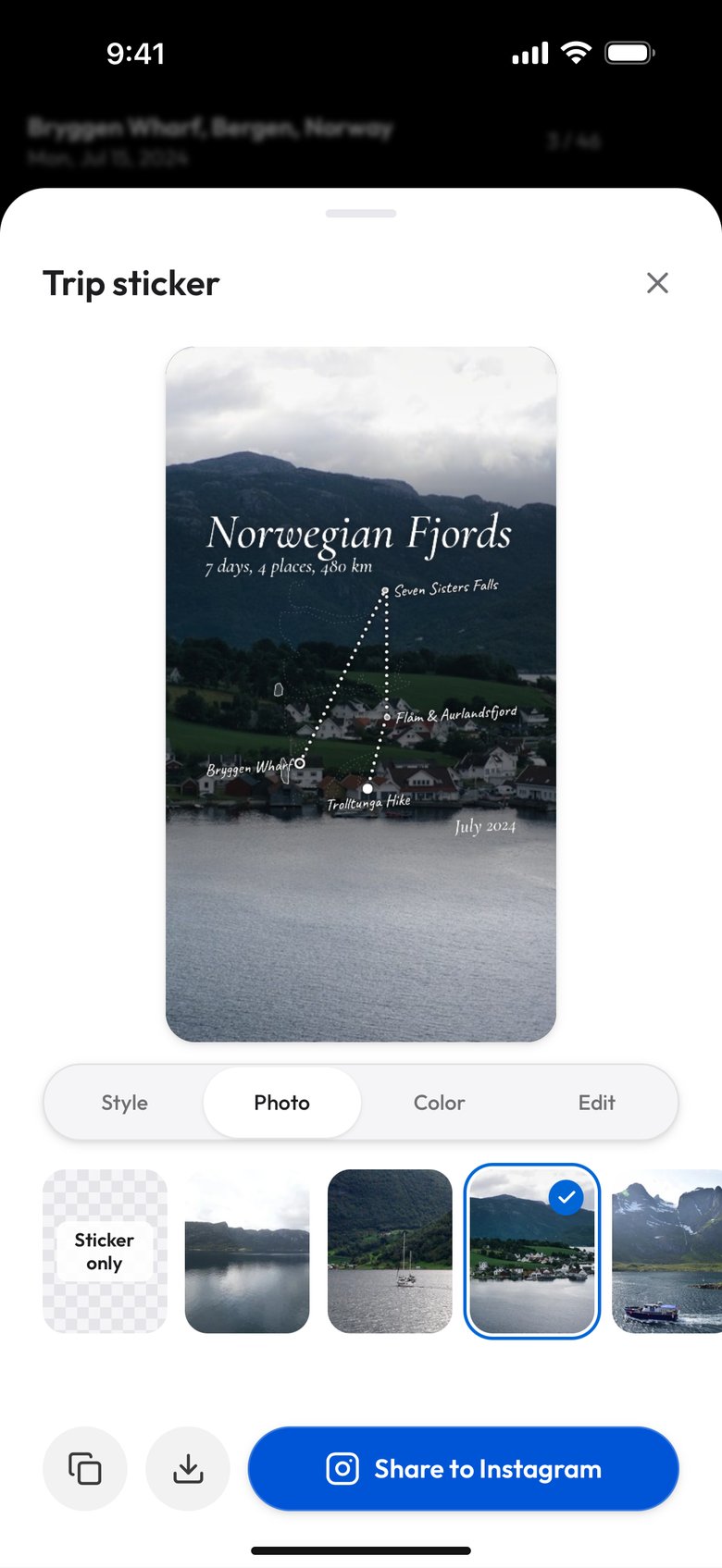
The studio opens from three places in an album. Its owner finds Share trip sticker under the Trip sticker heading at the bottom of the album's Share window. Add trip sticker in the album's ⋮ menu at the top opens the studio on the album's cover, and the same item in the photo viewer's ⋯ menu at the bottom left opens it on the photo you are looking at. Those two items are there for the owner, for people holding the album's Admin link, and for people holding its Add photos link once they have added a photo of their own. People with the View only link get none of them. A trip with a route opens on the Journal, which writes the trip like a page of a travel diary: its name in a large serif, the days, places and distance under it, and the route as a dotted line with each stop named in handwriting.
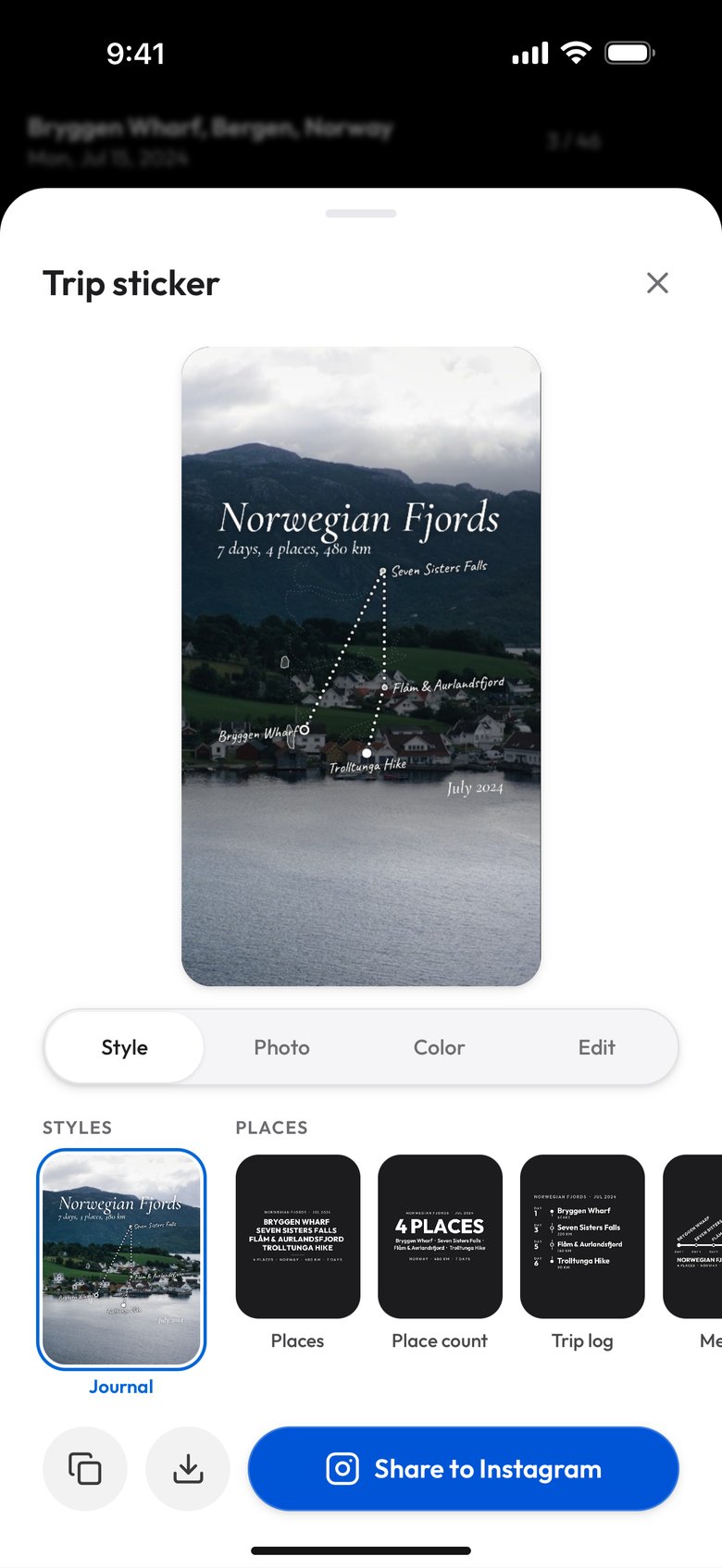
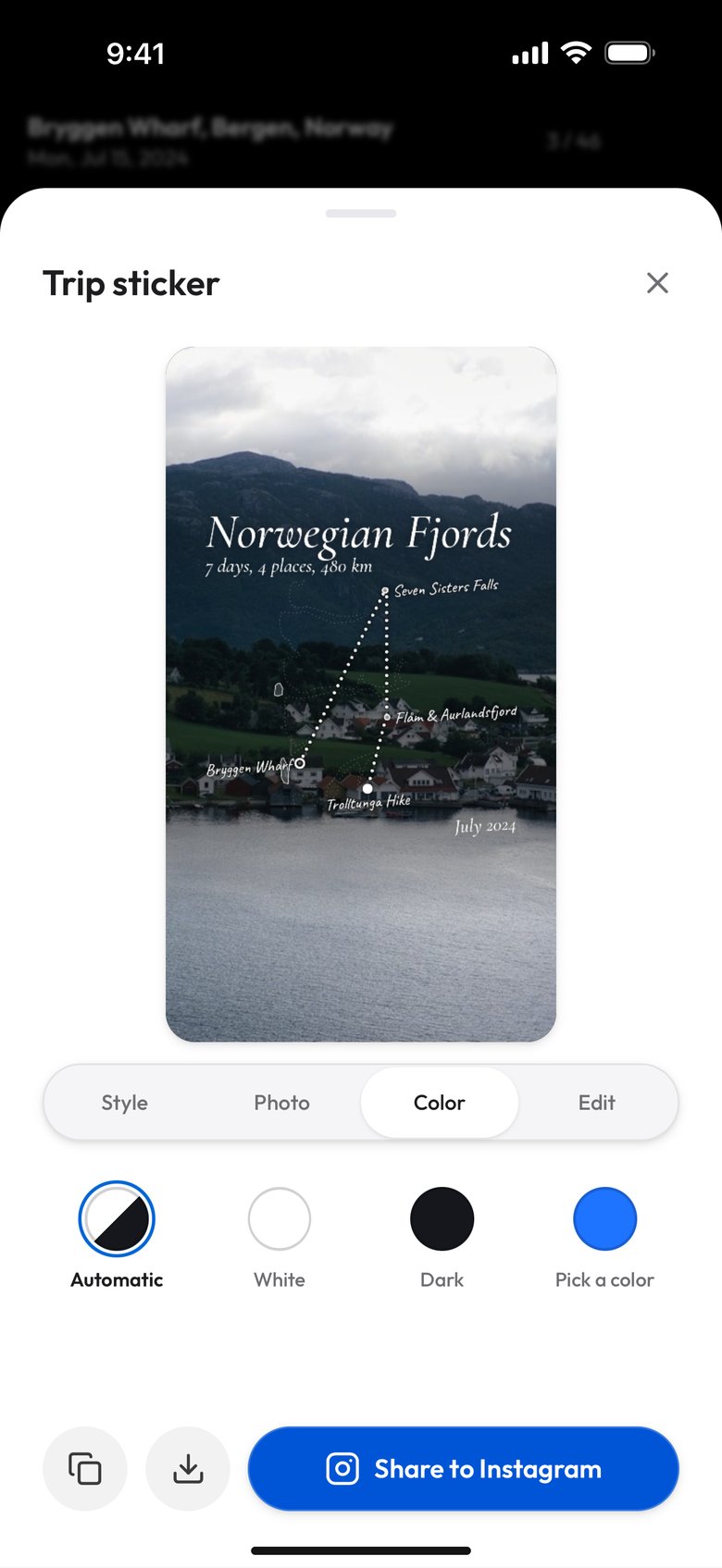
Under the preview the studio has four tabs. Style picks the design, Photo picks the picture behind the preview, Color picks the ink, and Edit decides which places and facts the sticker prints.
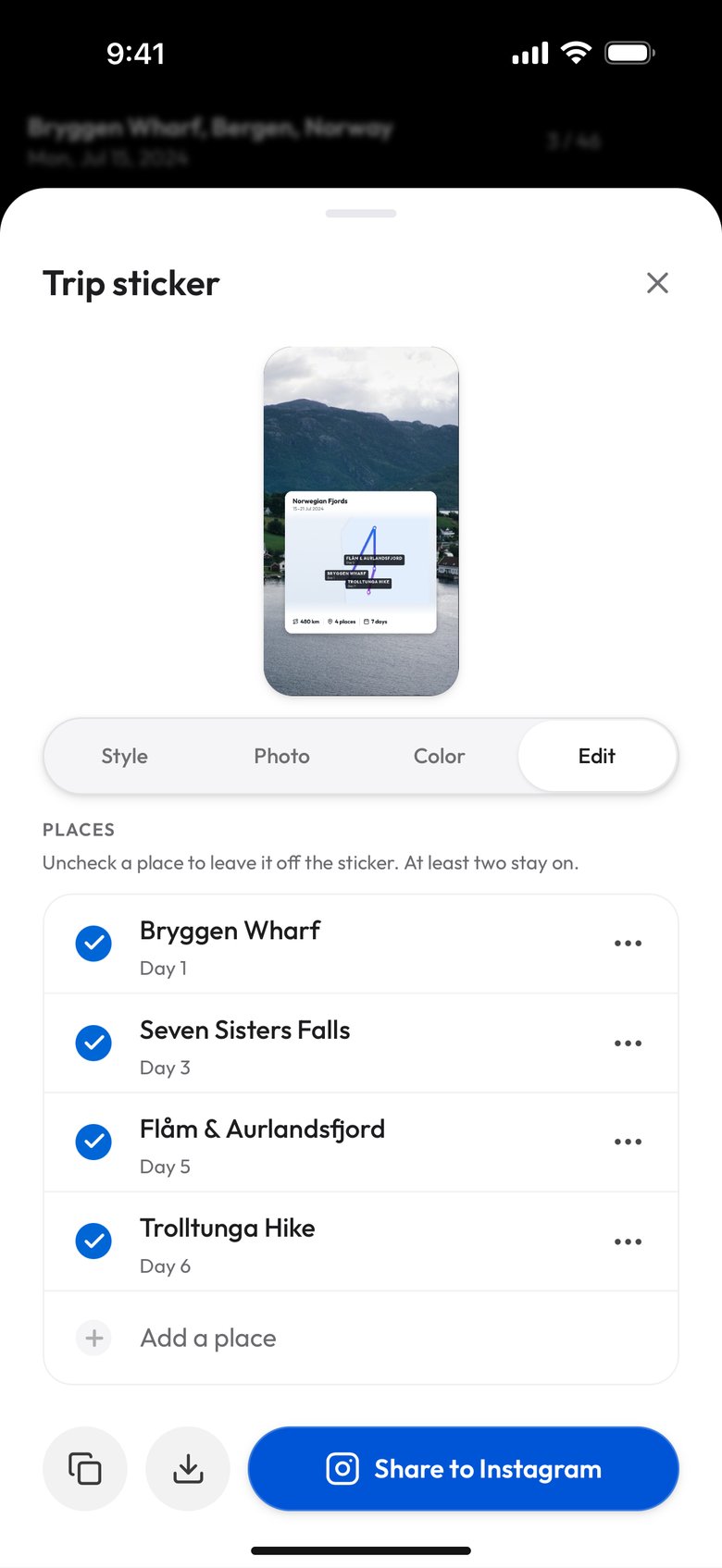
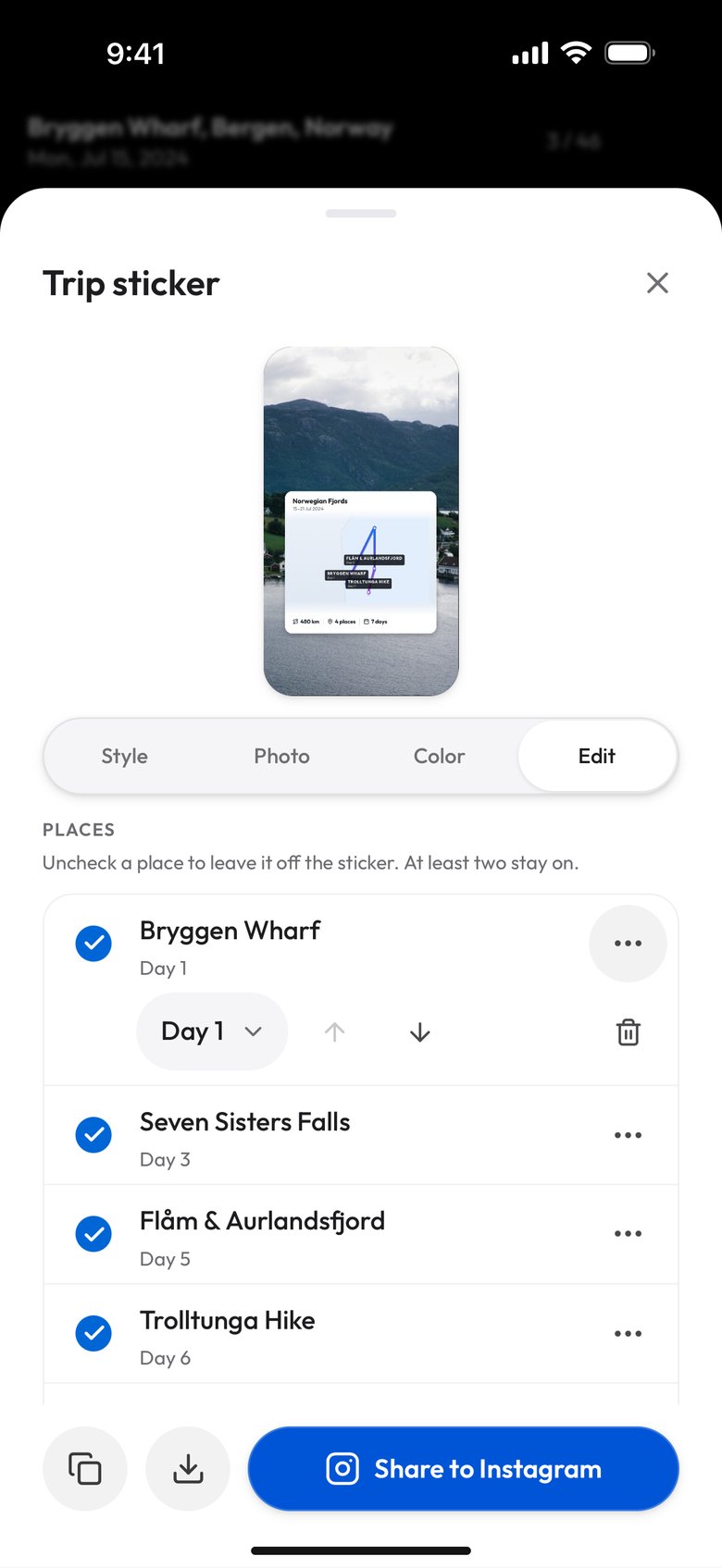
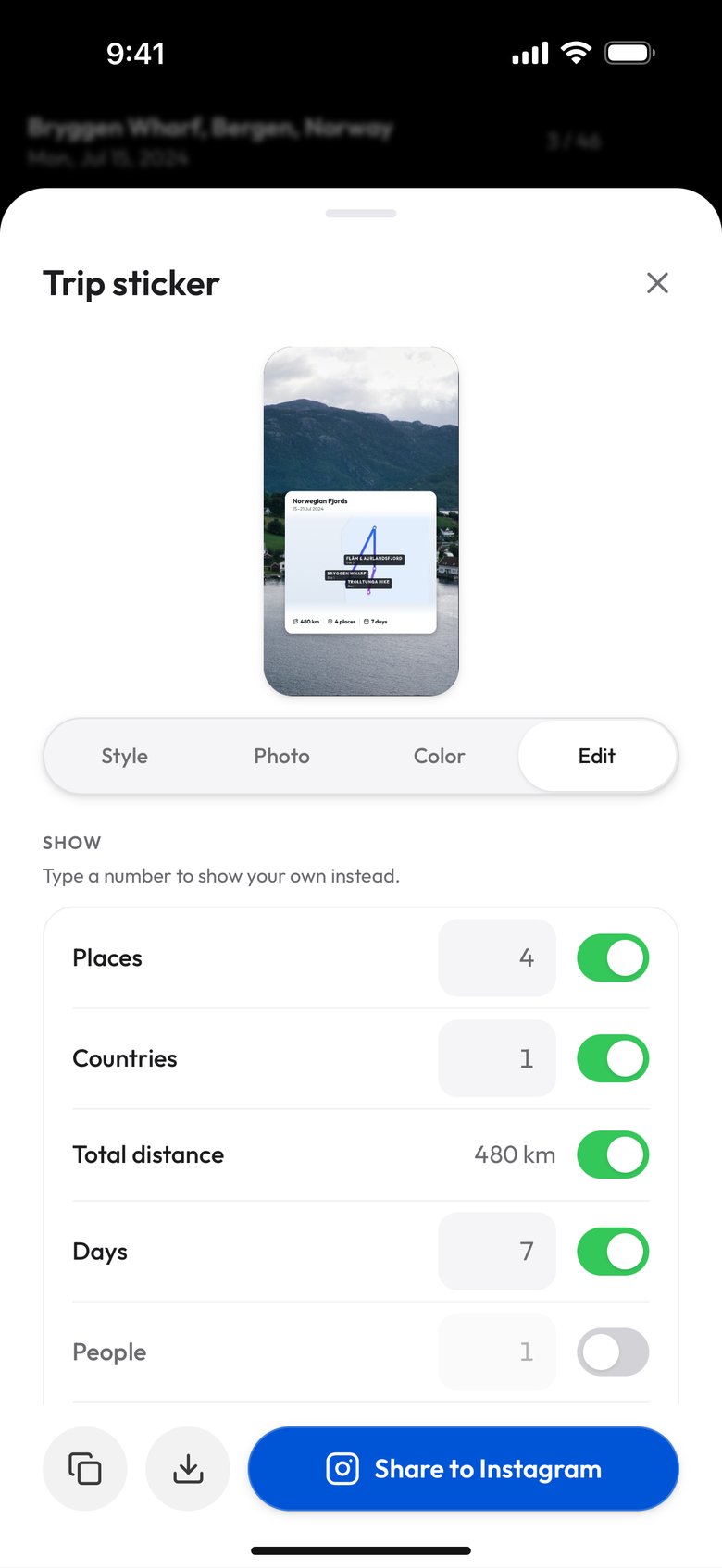
For an album, the Edit tab lists each place once, even when the trip went back to it, with the day it falls on. A check mark keeps a place on the sticker; uncheck it and the place leaves the sticker but stays in the list, so it can come back later, and at least two places always stay on. Tap a name to rename it, and the ⋯ button beside it shows a menu to change the day, arrows to move the place up or down, and a button to remove it. Add a place at the bottom adds one of your own, and a change applies to every visit to that place. Under Show, a switch beside each fact decides whether the sticker prints it: places, countries, total distance and days are on to start with, the number of people and the number of photos are off. Every fact except the distance has a number field: type a number and the sticker prints it instead of the counted one, clear the field and the counted one comes back. None of this changes the album.
The sticker does not know how you traveled. Viallo has no record of whether you drove, flew or took the train between two places, so nothing on a trip sticker claims one.
From a metro line to a map: the designs
The Style tab starts with the Journal, under Styles, and sorts the other designs into three groups. Places draws the trip as its list of names, as a count, as a day-by-day log, as a metro line, or as the shape of the route with its stops named or numbered. Countries turns the stops into passport stamps. Summary puts the trip as a whole first: three big numbers, the trip name in large capitals, the route under its distance, the route line with only its two ends named, one place, one rubber stamp, and Map, a white card with the route drawn on a map of the region.
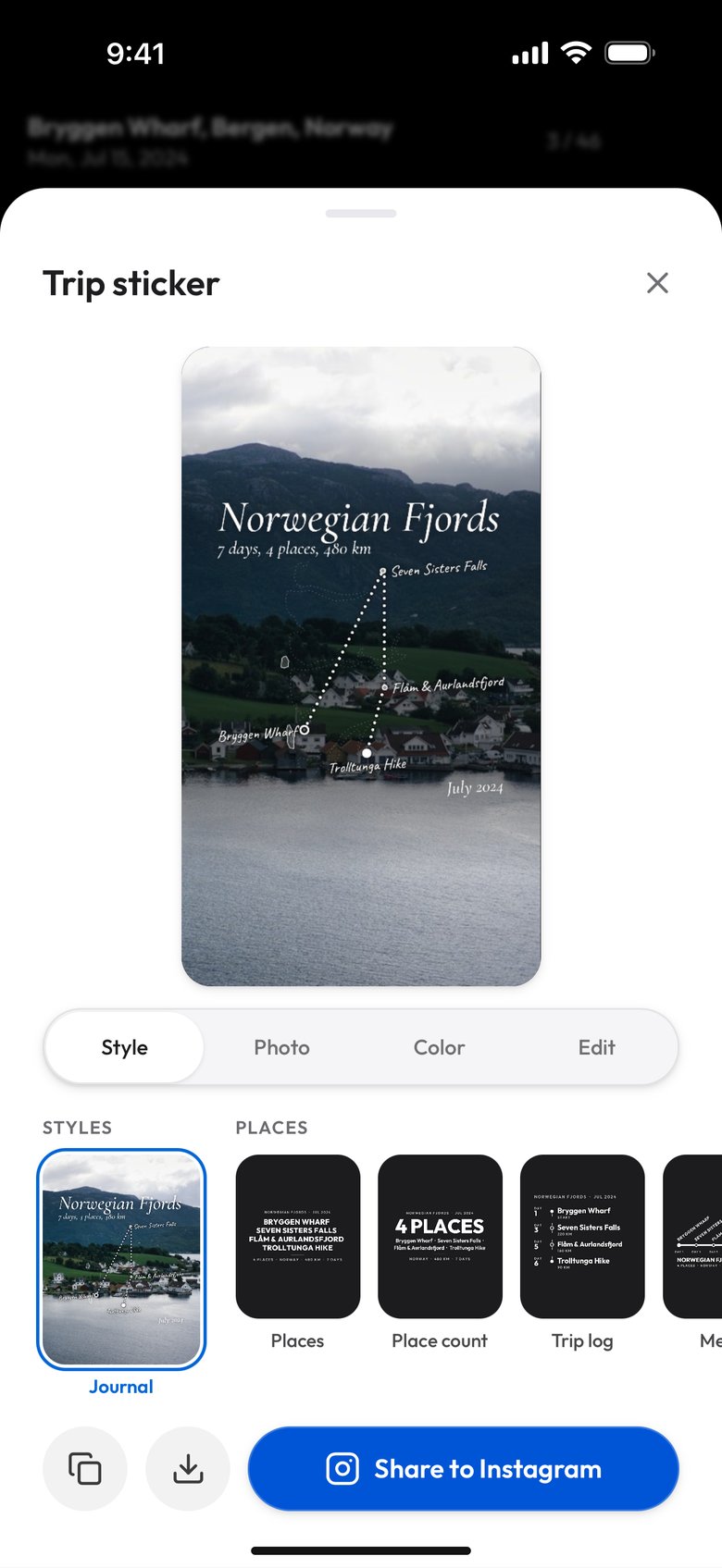
Journal
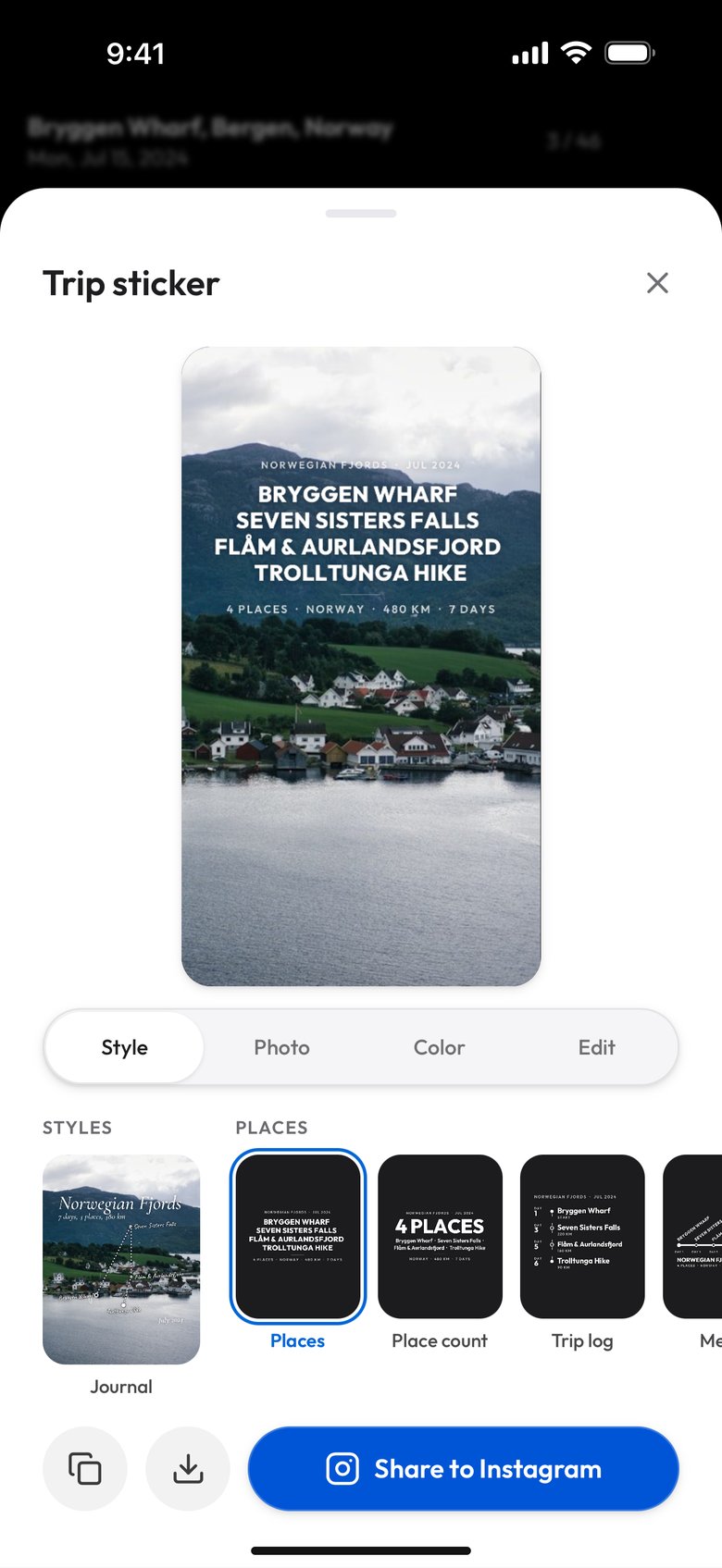
Places
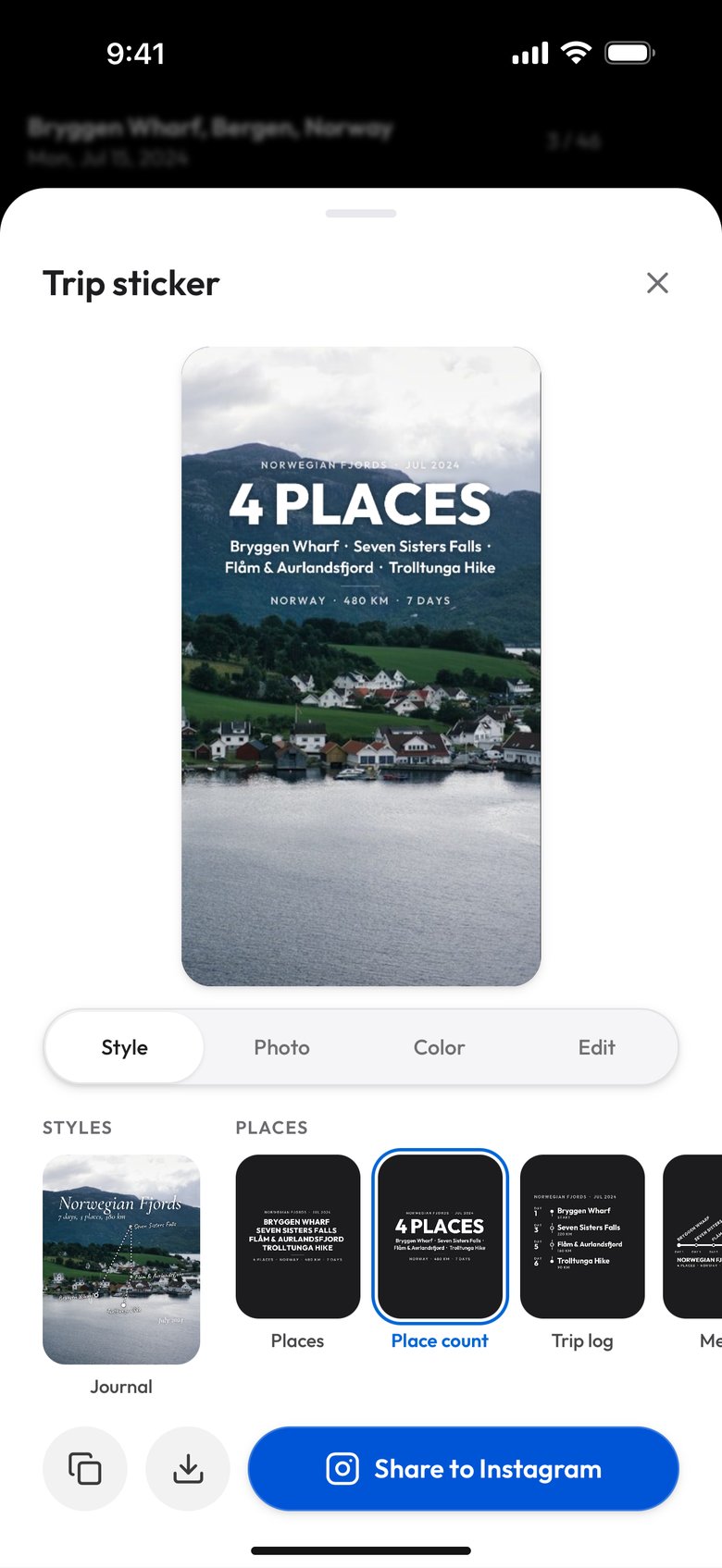
Place count
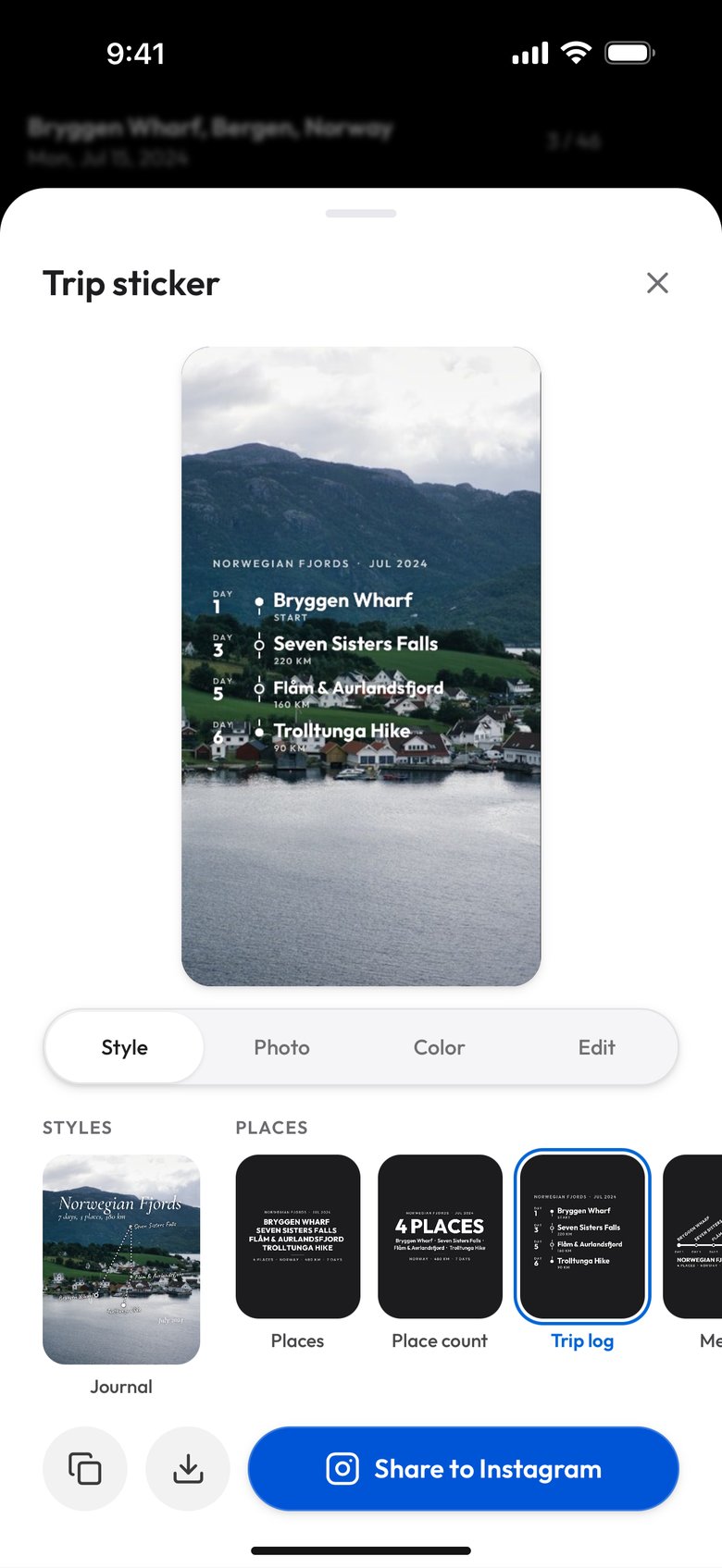
Trip log
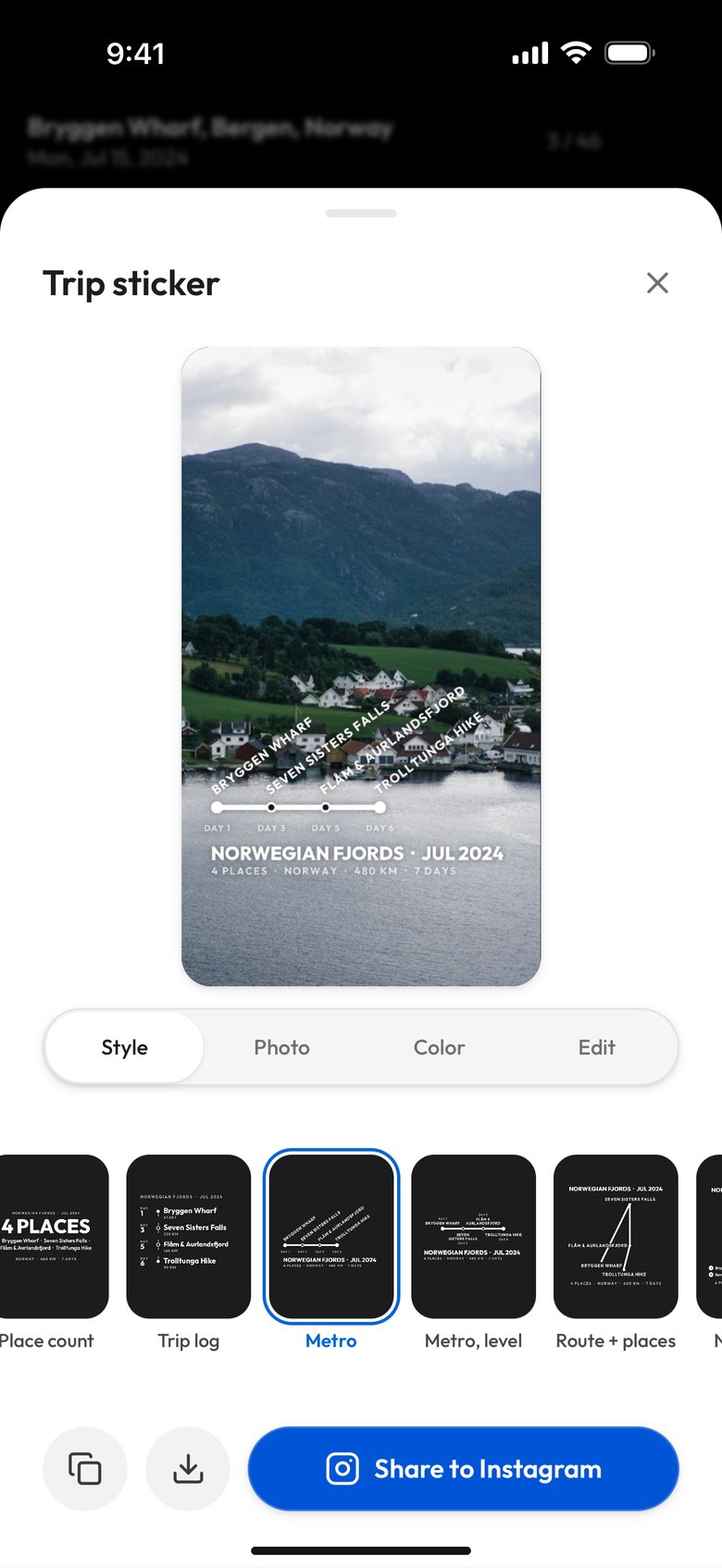
Metro
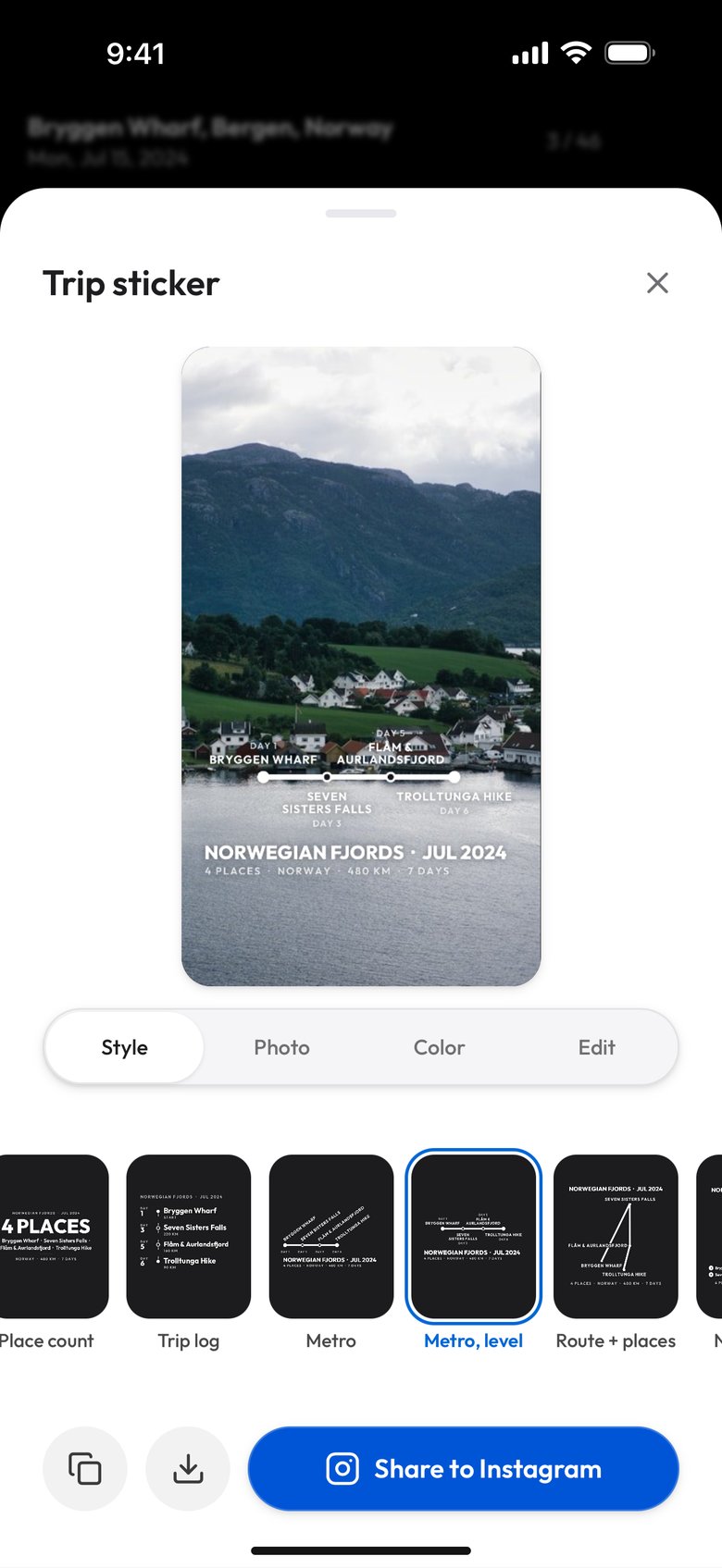
Metro, level
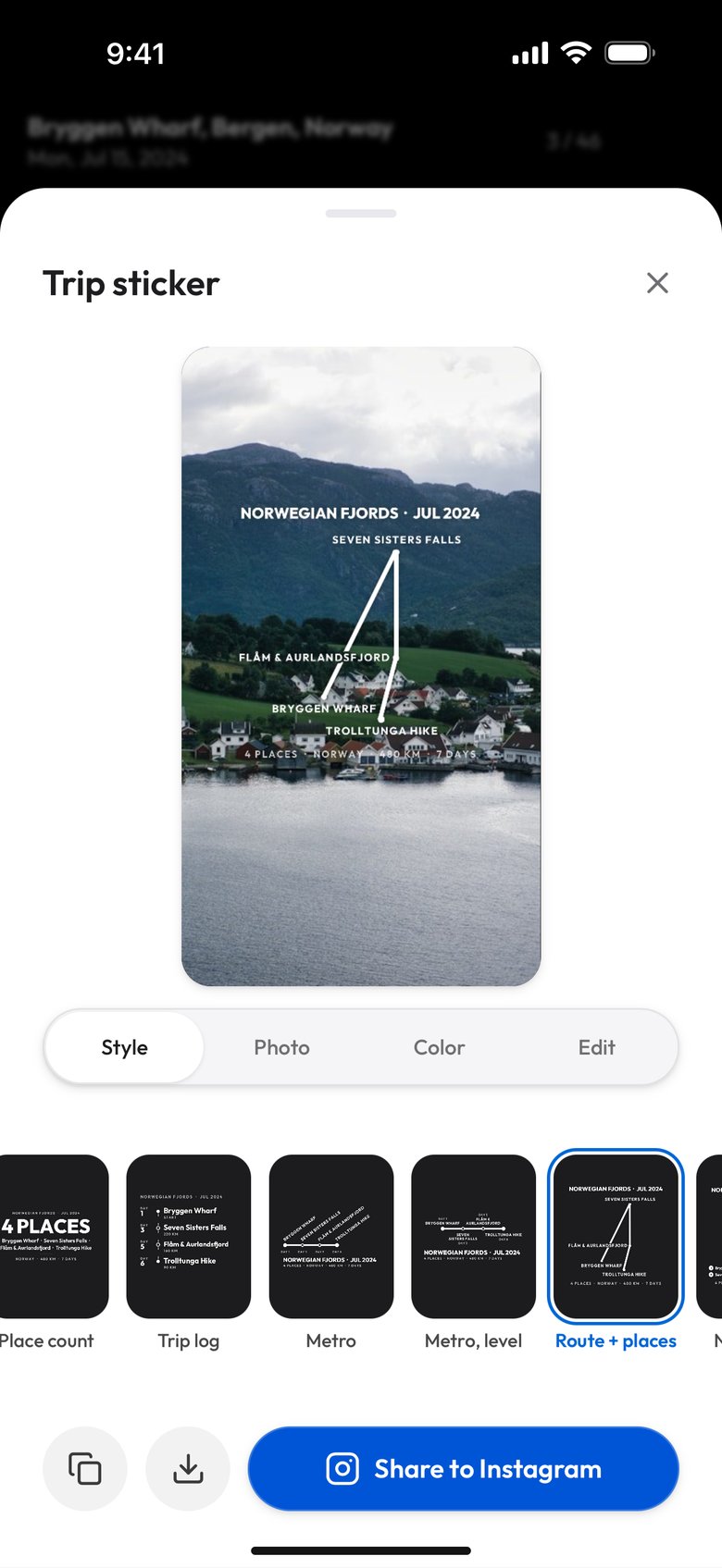
Route + places
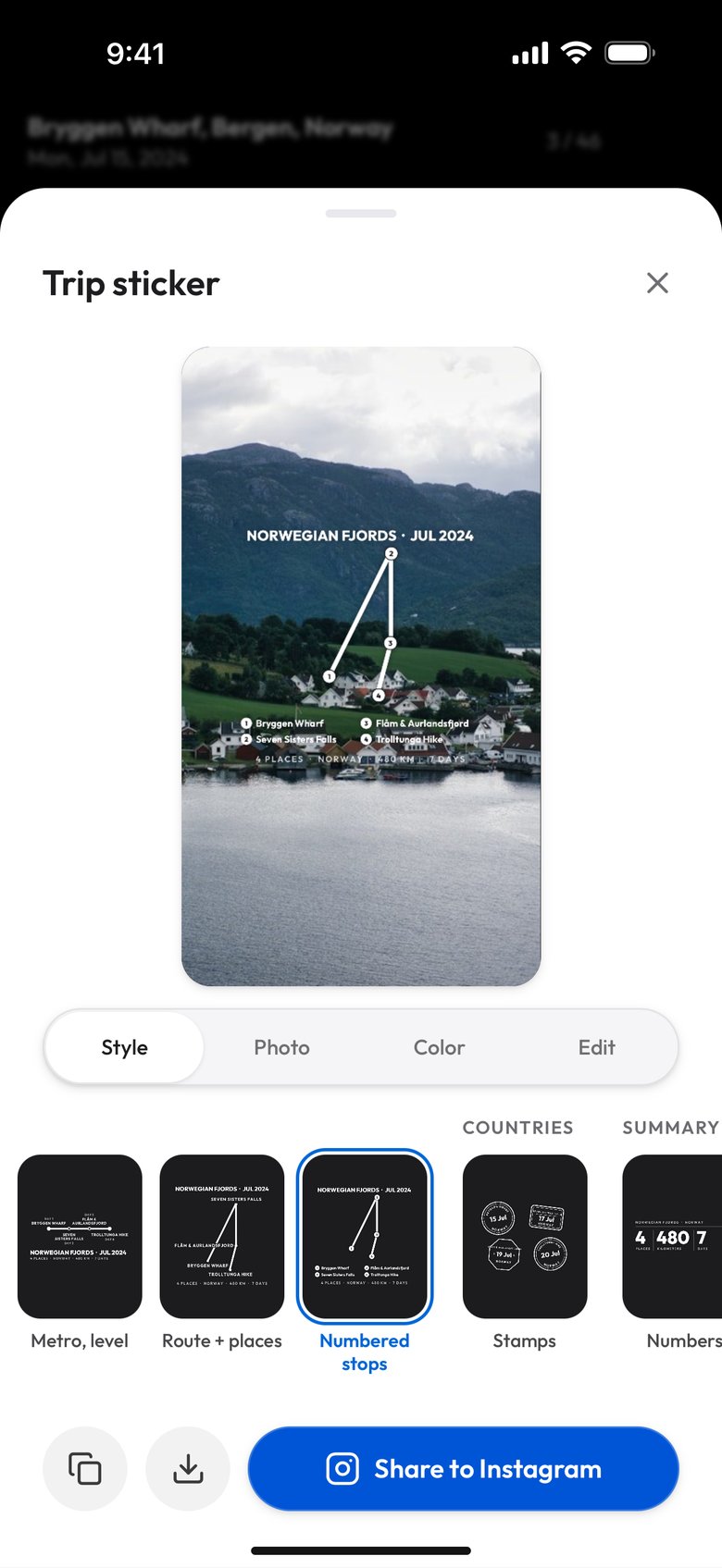
Numbered stops
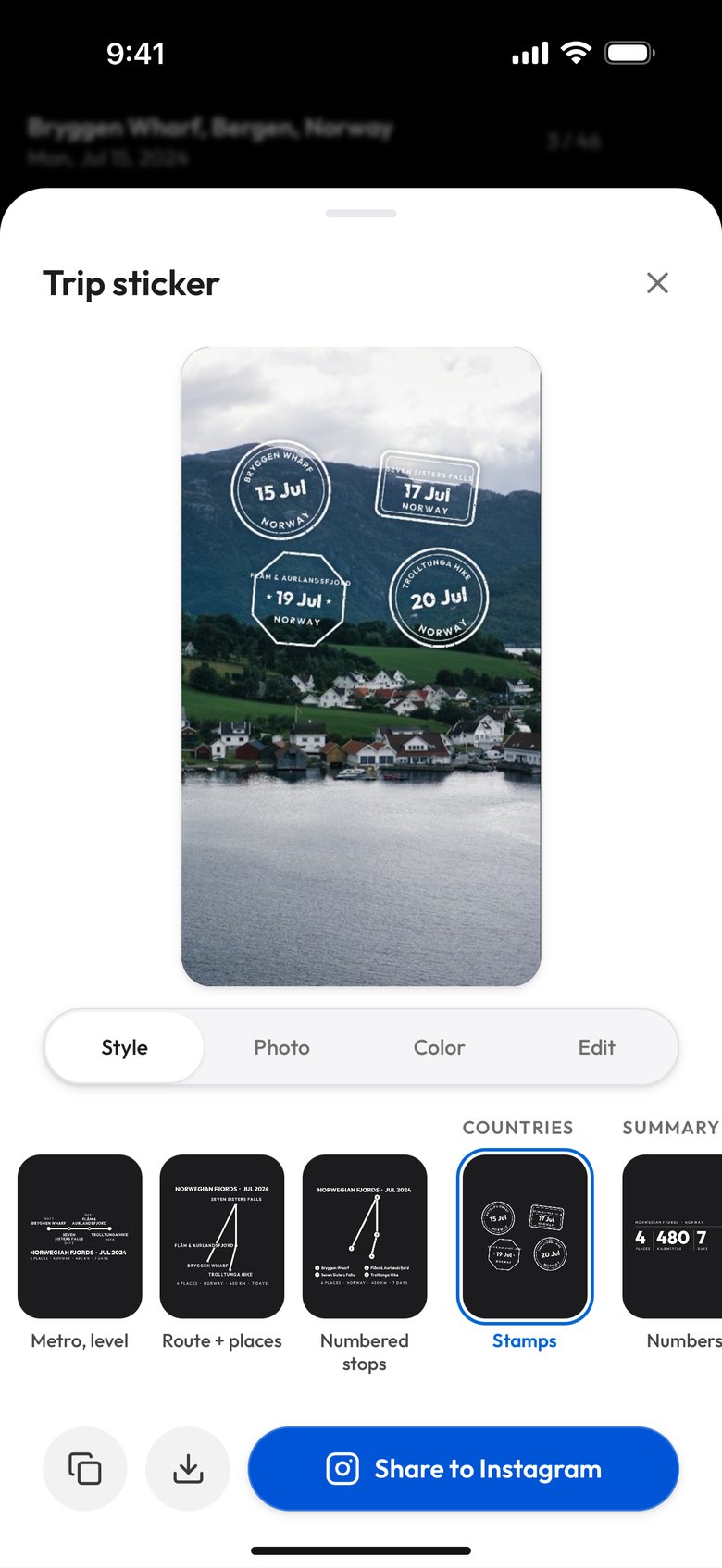
Stamps
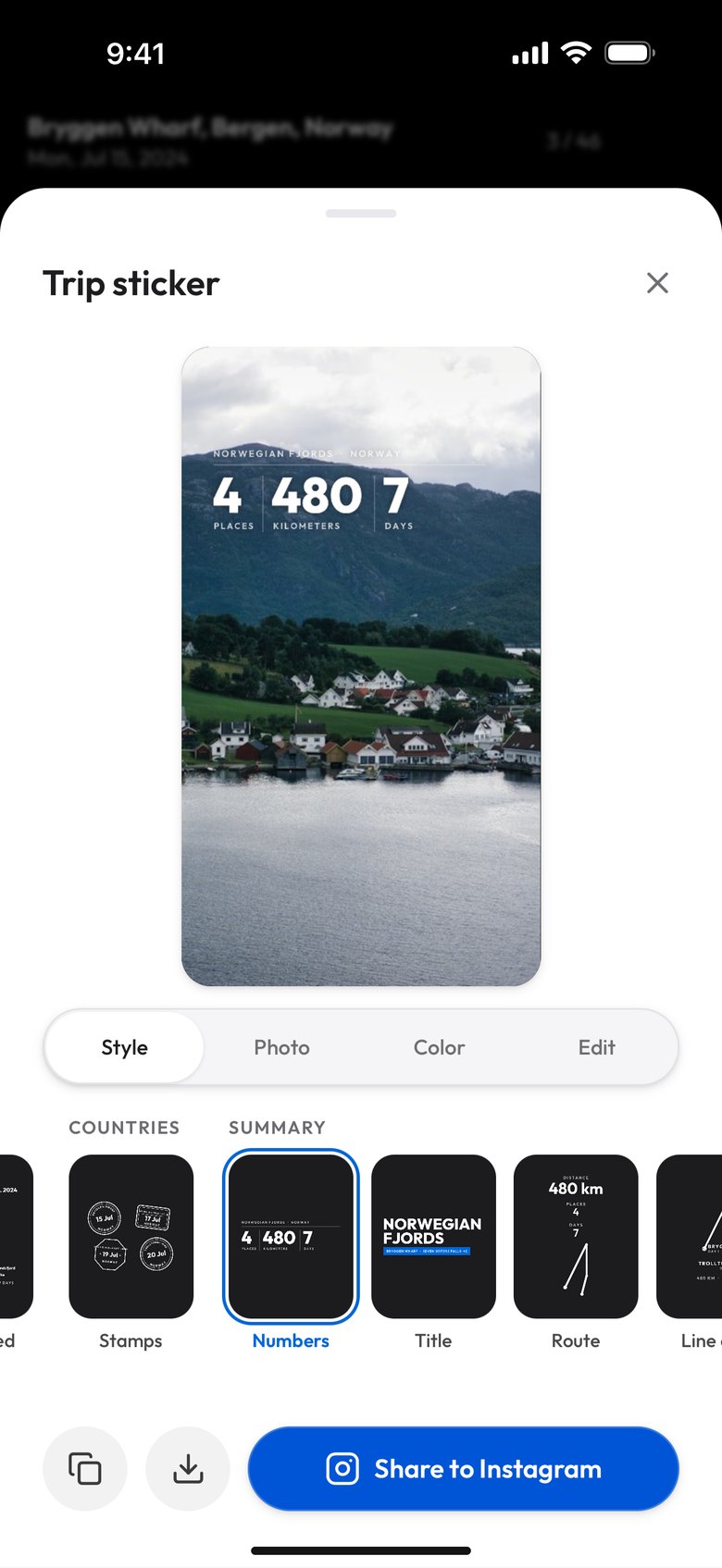
Numbers
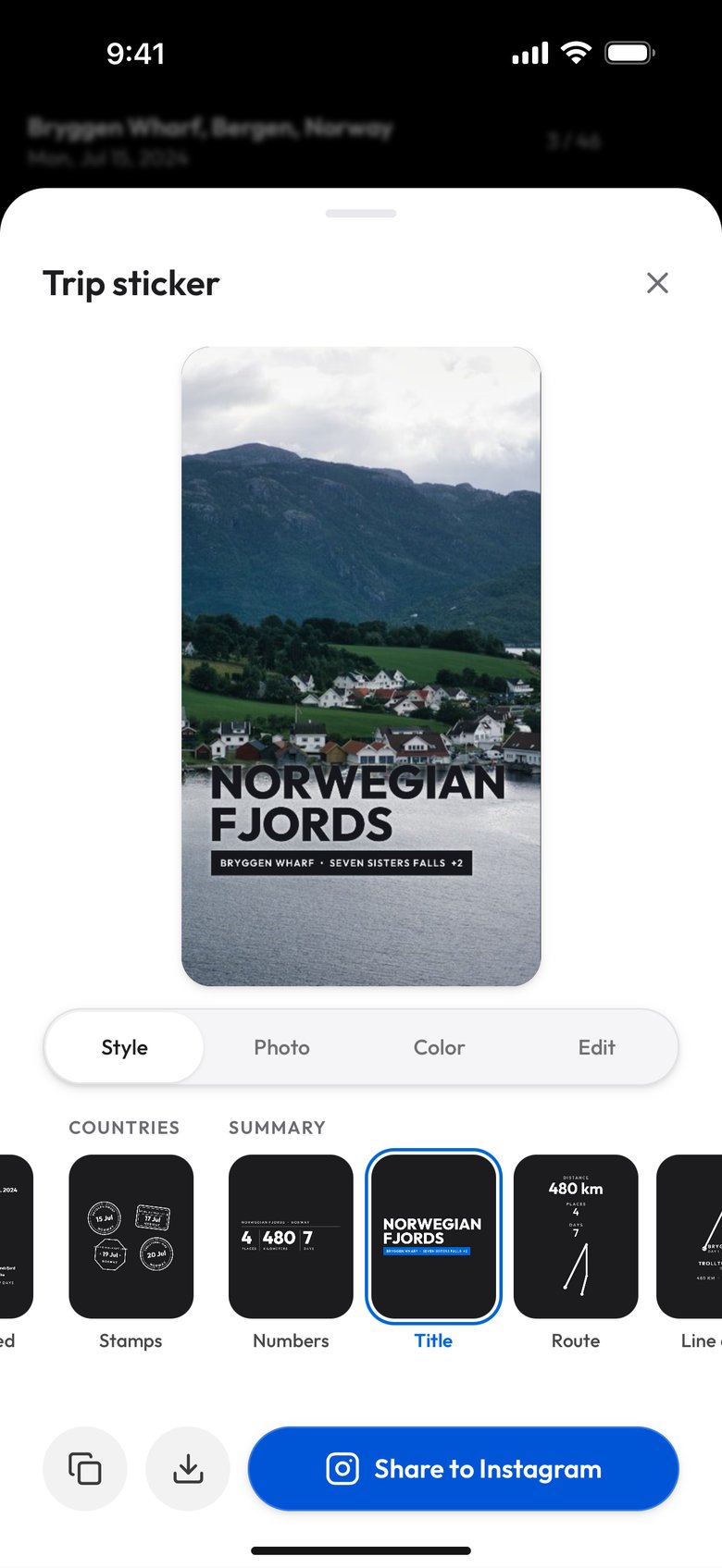
Title
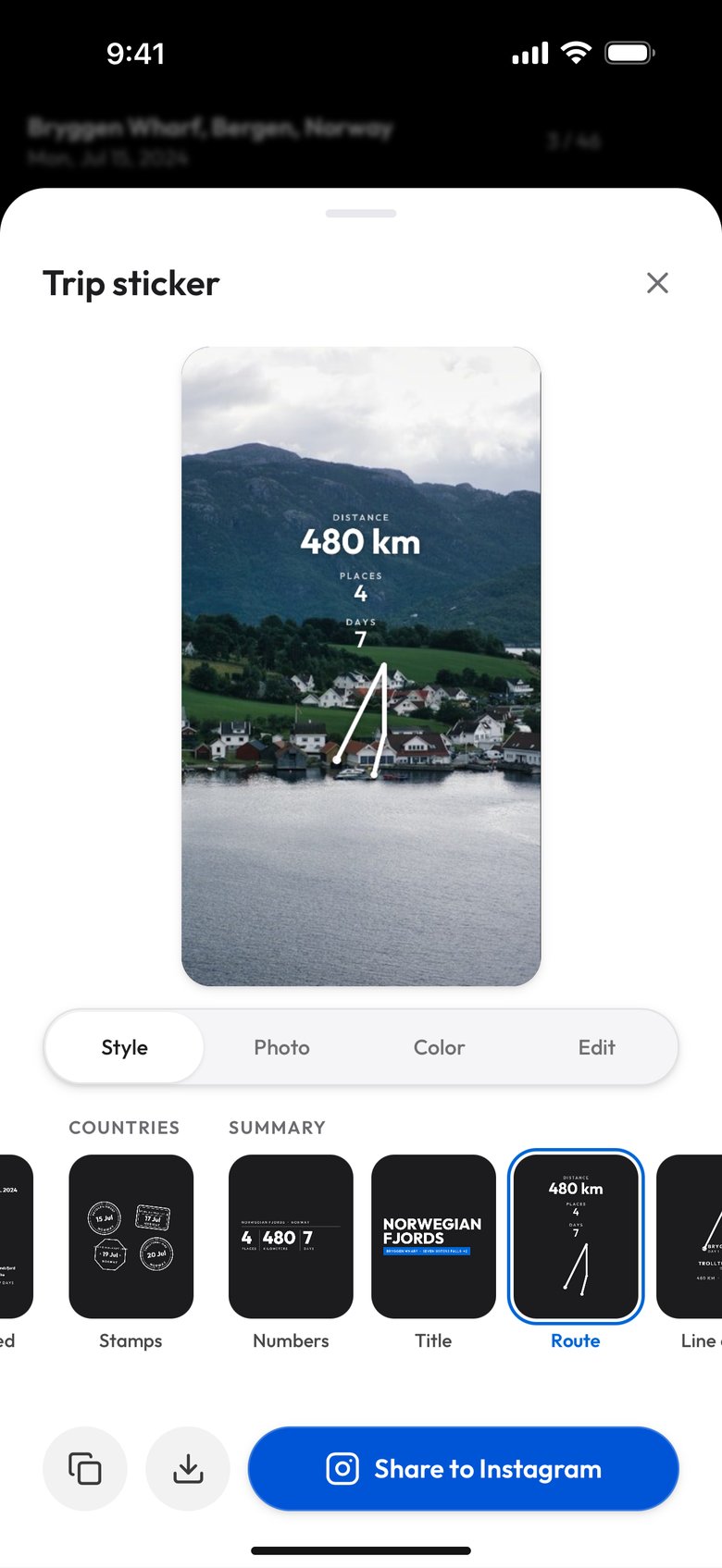
Route
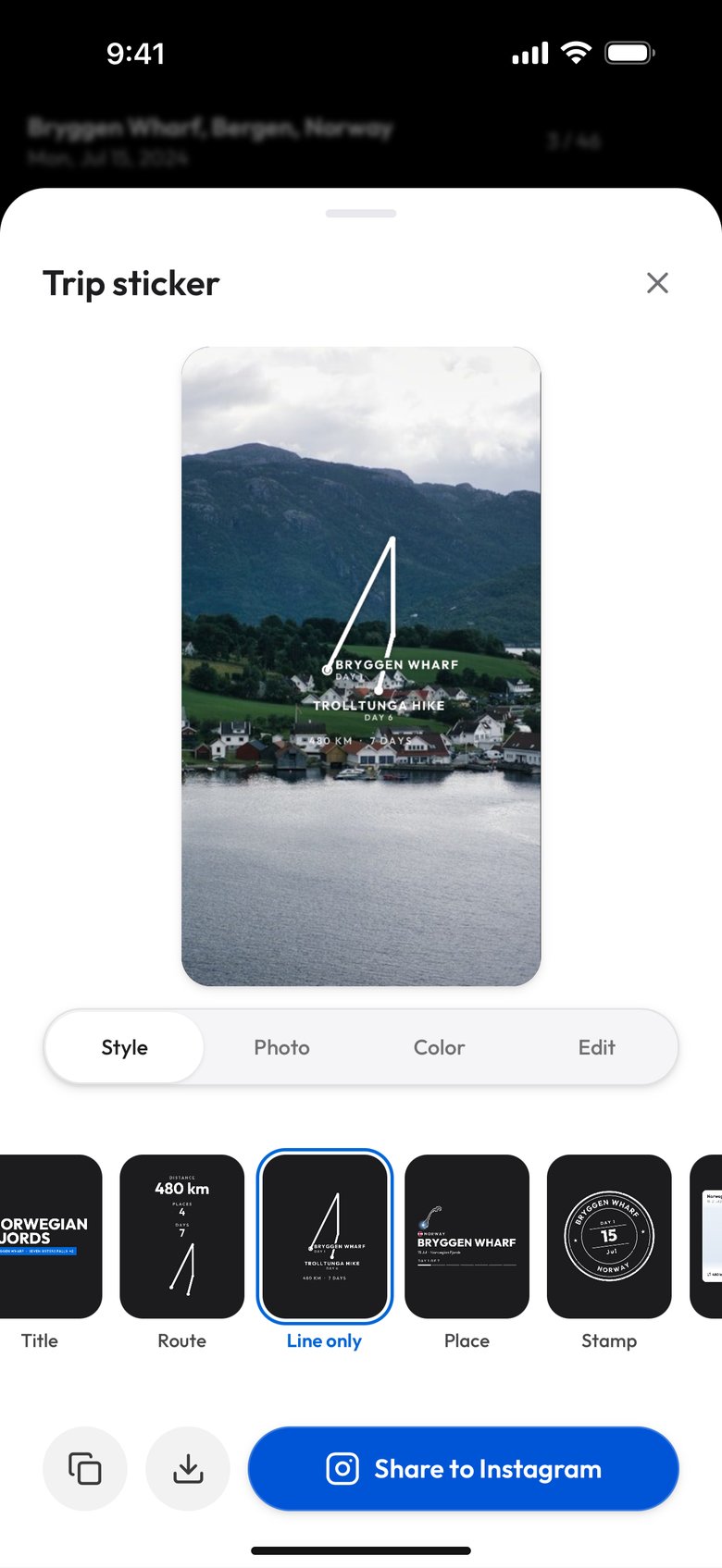
Line only
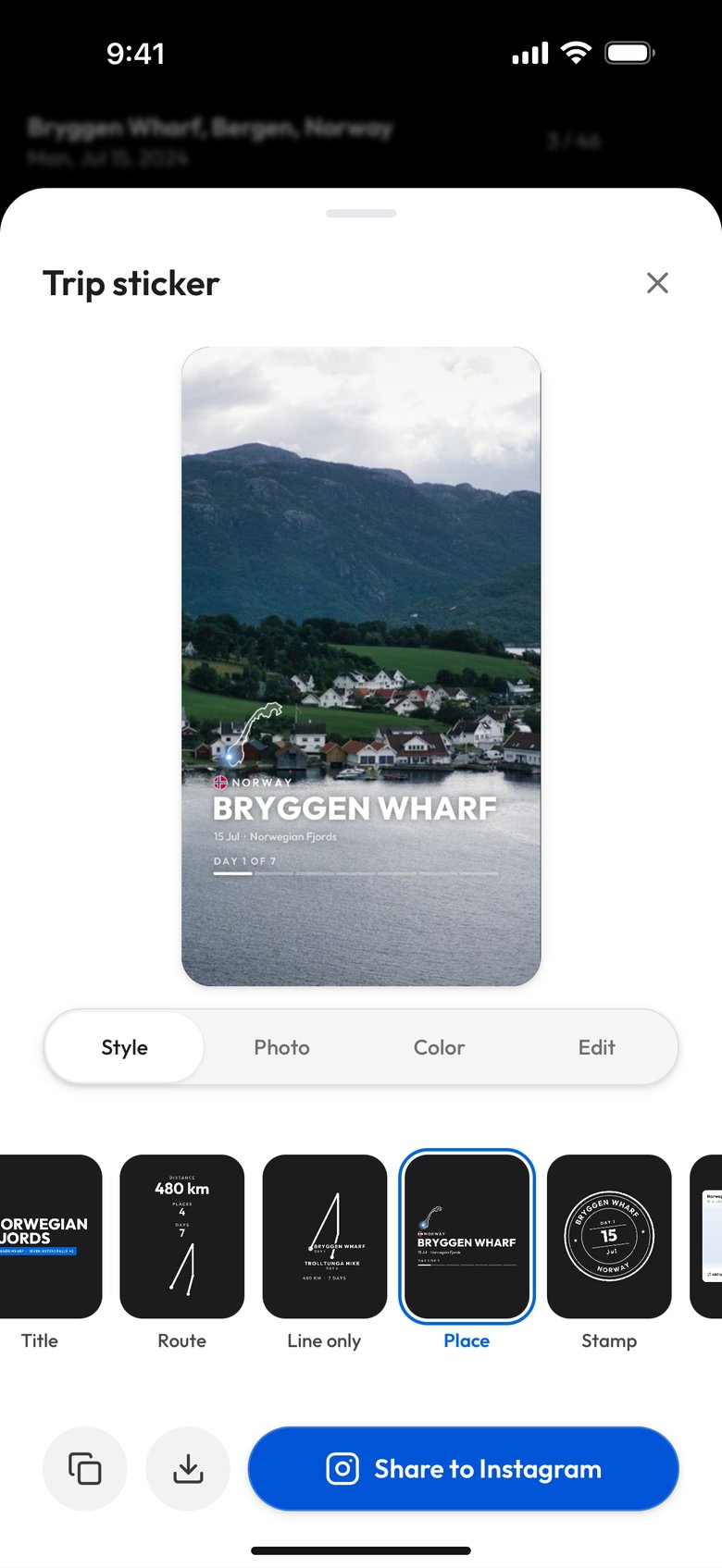
Place
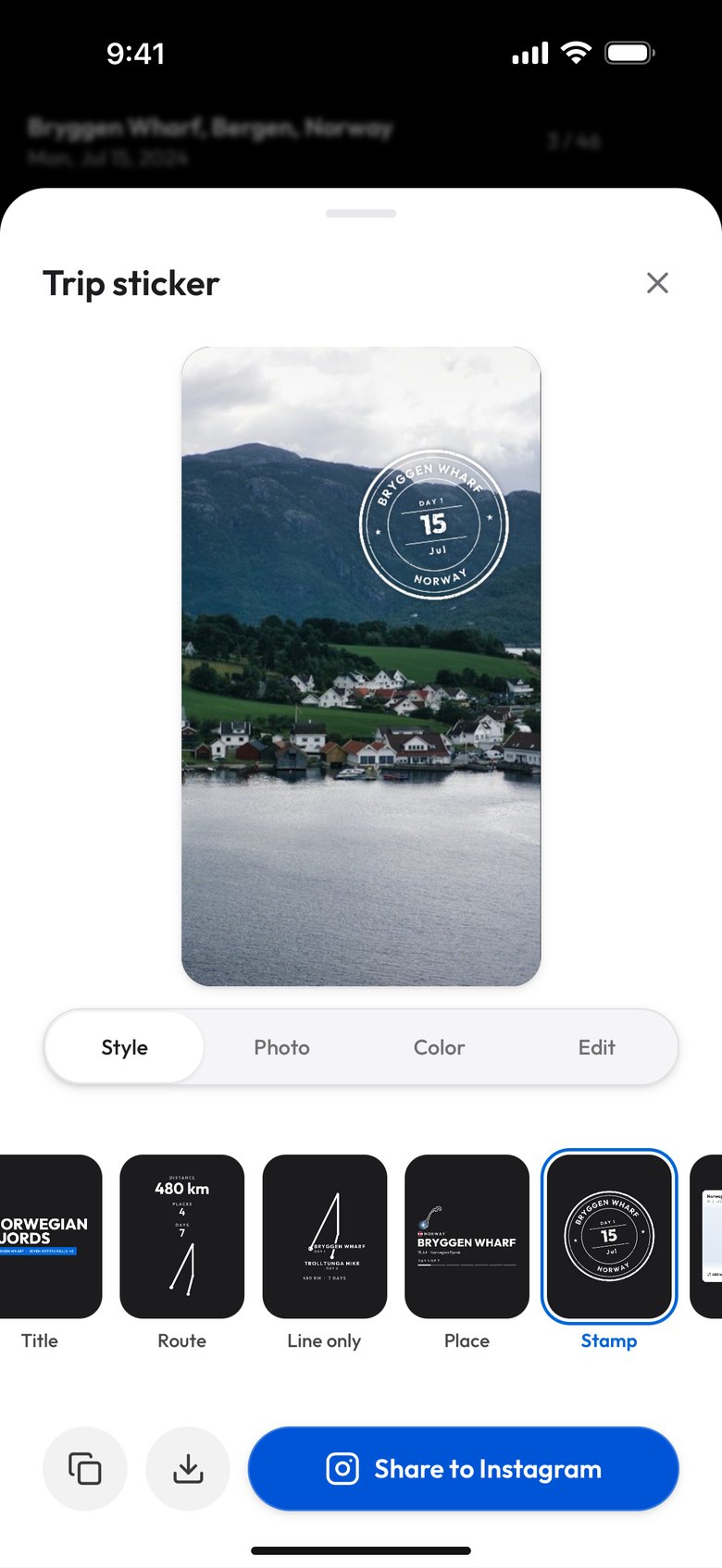
Stamp
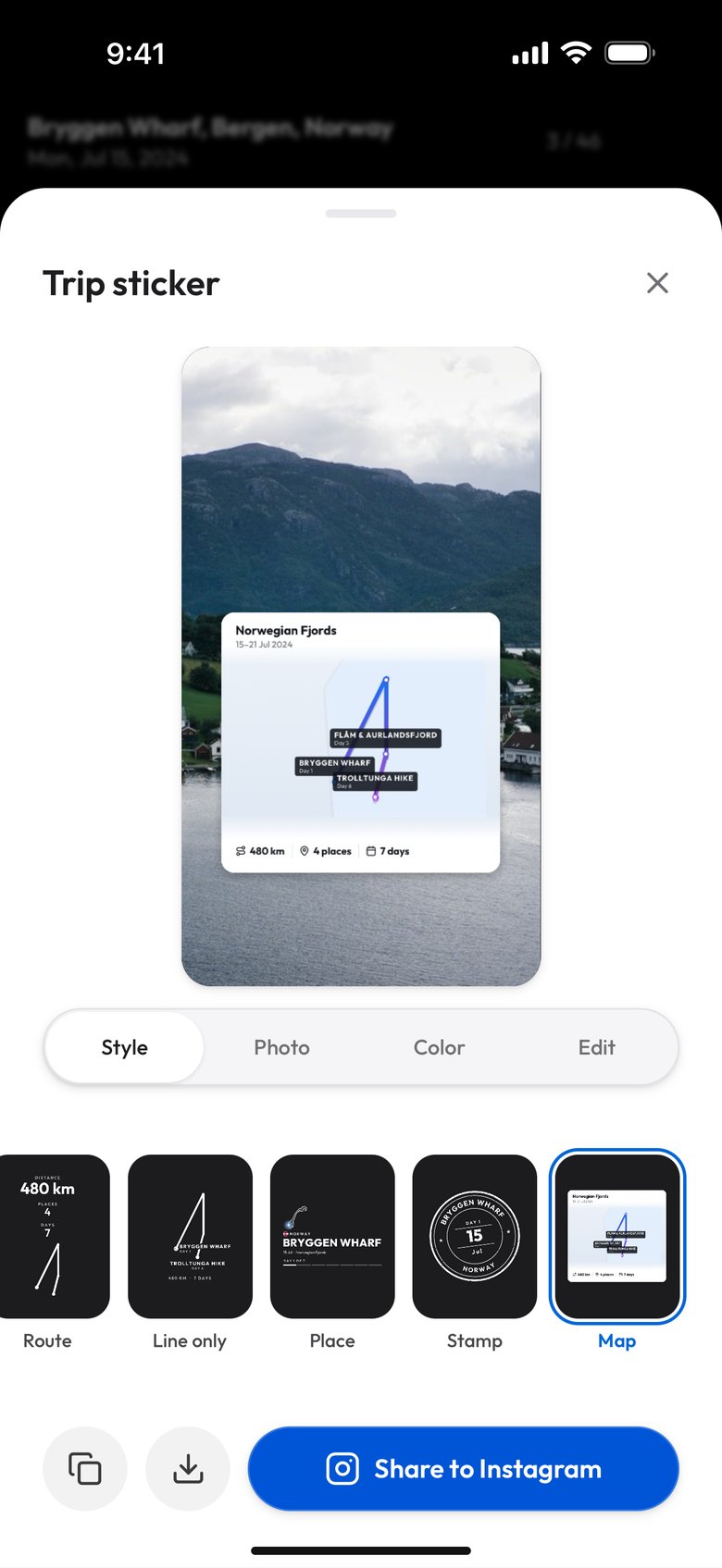
Map
Which designs an album gets depends on what its photos know. An album whose photos lie more than 10 kilometers apart has a route, and gets the Journal, Route + places, Numbered stops, Stamps and the whole Summary group. Places and Place count also need two places with different names, Trip log and both Metro designs need three, and a trip through two or more countries adds Countries, a row of their flags. An album whose photos stay within 10 kilometers is one place and gets Numbers, Title, Place, Stamp and Map, plus the Journal when its photos carry two place names, and one whose photos carry no location at all still gets Numbers, Title and Stamp, built from its title and its dates.
Previewing it on your own photo
The studio shows the sticker the way a story will: a 9:16 frame with a photo from the album behind it. The Photo tab changes that photo, or shows the sticker on its own with Sticker only. The photo is only there so you can judge the result; the sticker you save is still the transparent layer on its own.
The Color tab has four settings: Automatic, White, Dark and Pick a color, which opens a color picker. Automatic reads how bright the photo is under the sticker and picks white for a dark photo and dark for a bright one. The inks carry a soft halo, so a white sticker still reads over a pale sky, and a color you pick gets its halo by contrast, so even a near-white one stays readable on a bright photo.
Stickers from the Atlas
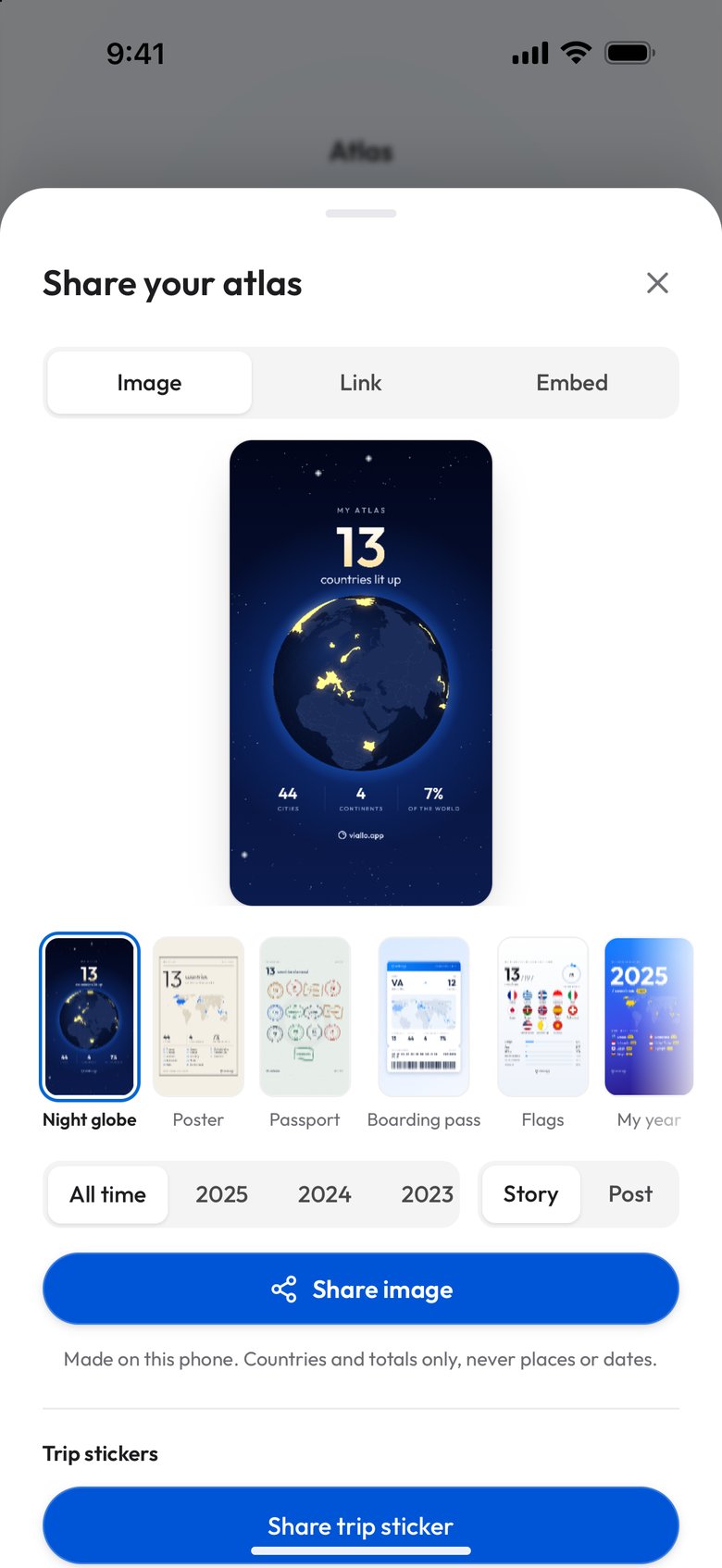
The Atlas, Viallo's globe of every country your photos were taken in, gets six stickers of its own, for your travels as a whole rather than one trip. Countries puts the flag of your newest country over the words Country no. 13, or whatever your number is, with the flags of the others in a row. Numbers, Title, Route, Stamp and Map count your countries and cities, and some add the continents and the year of your first photo. They come from the Atlas's own Share window: open the Atlas, press Share, the share icon at the top right on a phone, then Share trip sticker under the Trip stickers heading. The Atlas has no photo of its own, so its studio has no Photo tab and previews the sticker on dark.
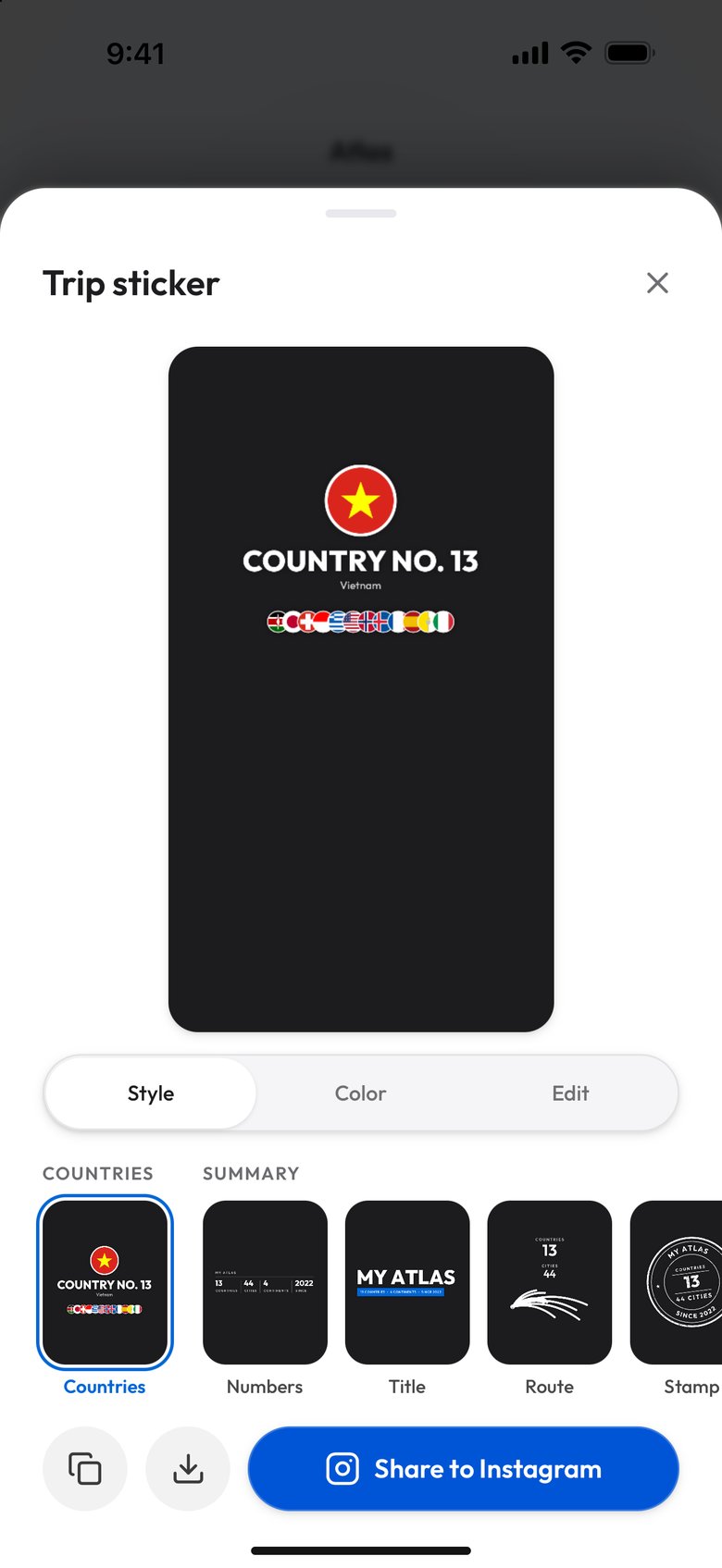
Countries
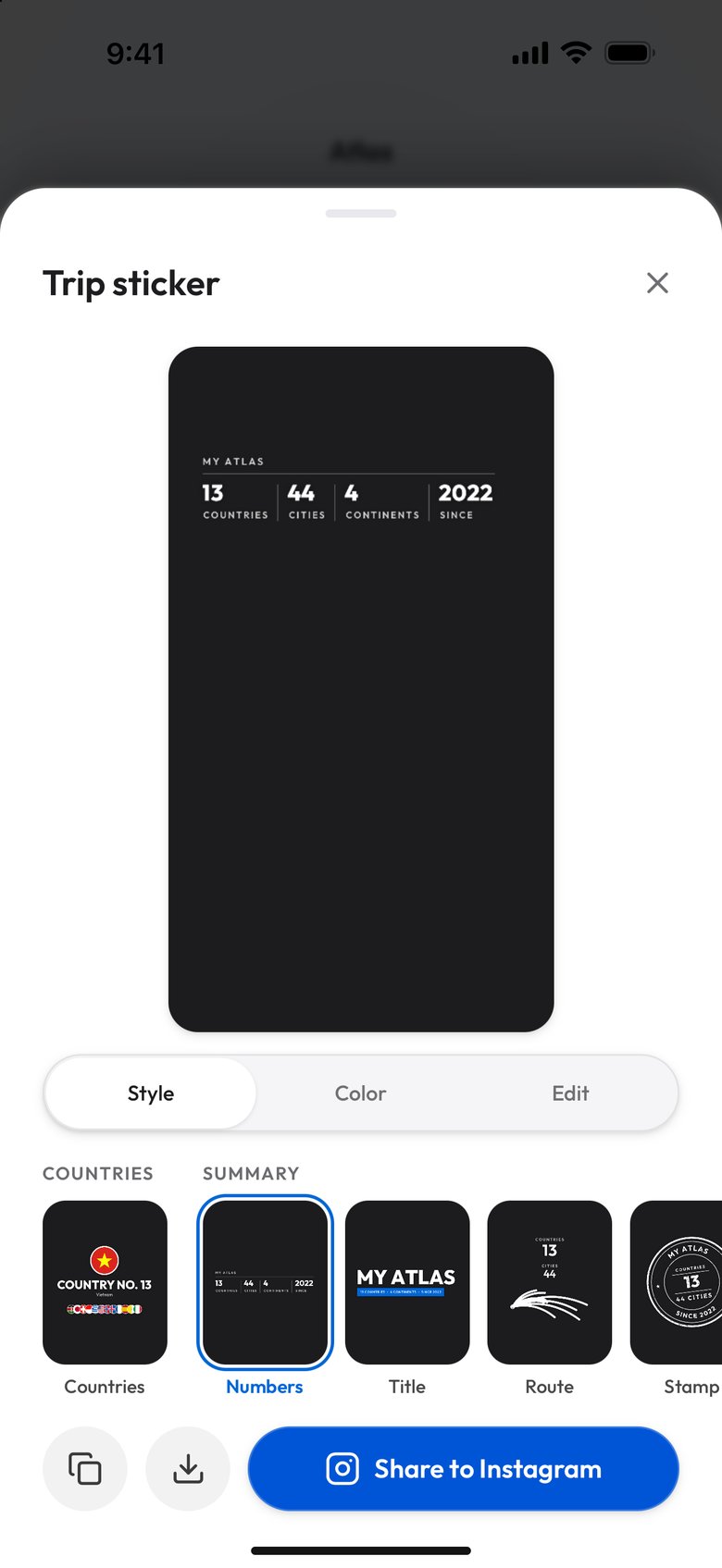
Numbers
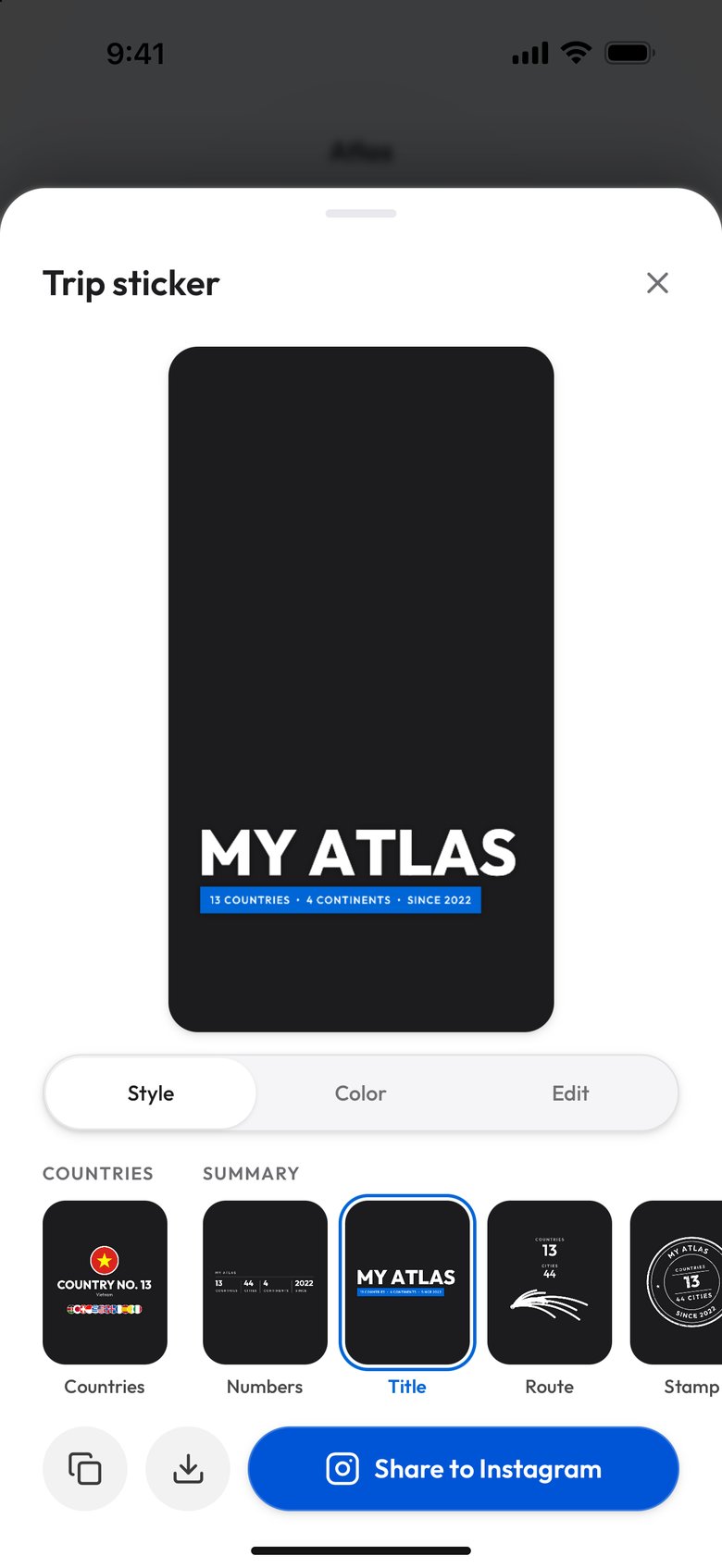
Title
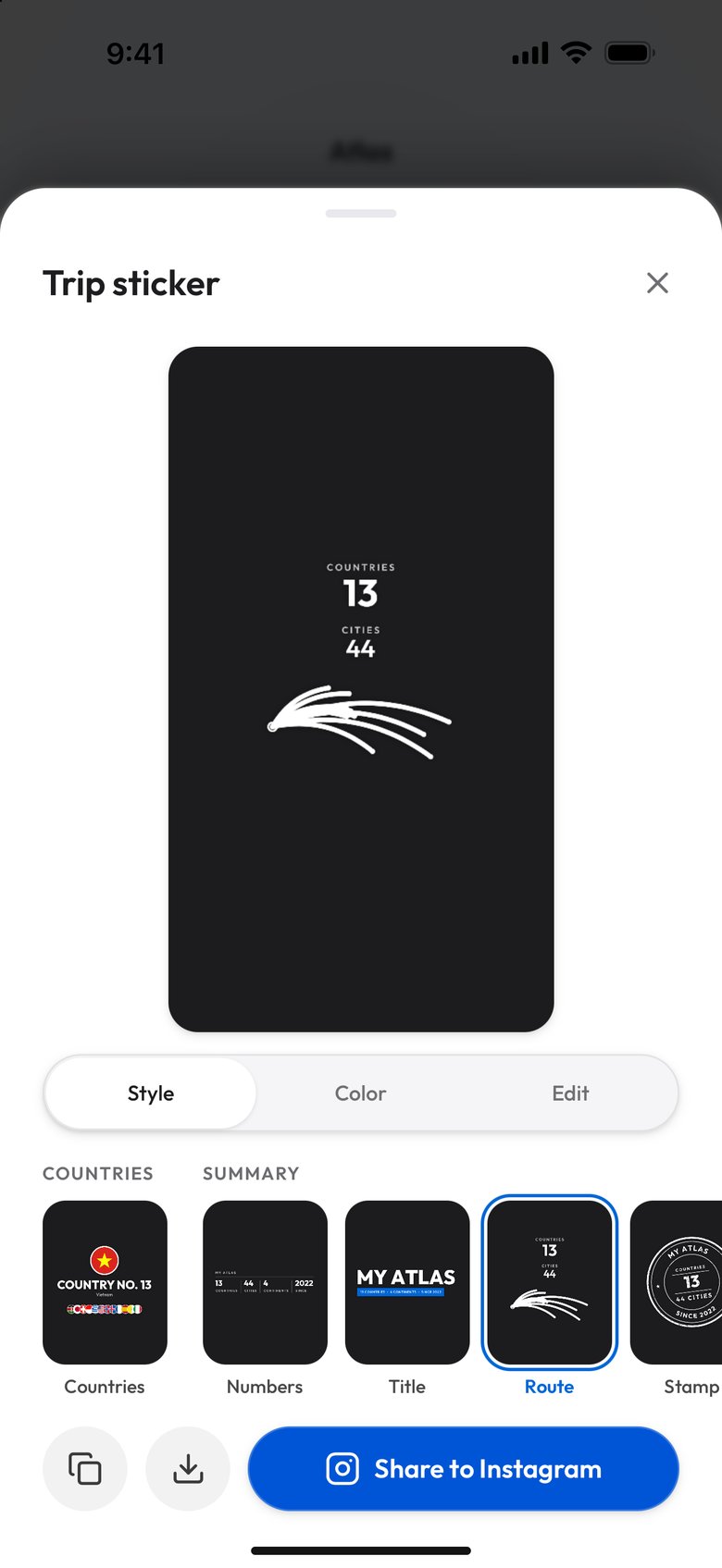
Route
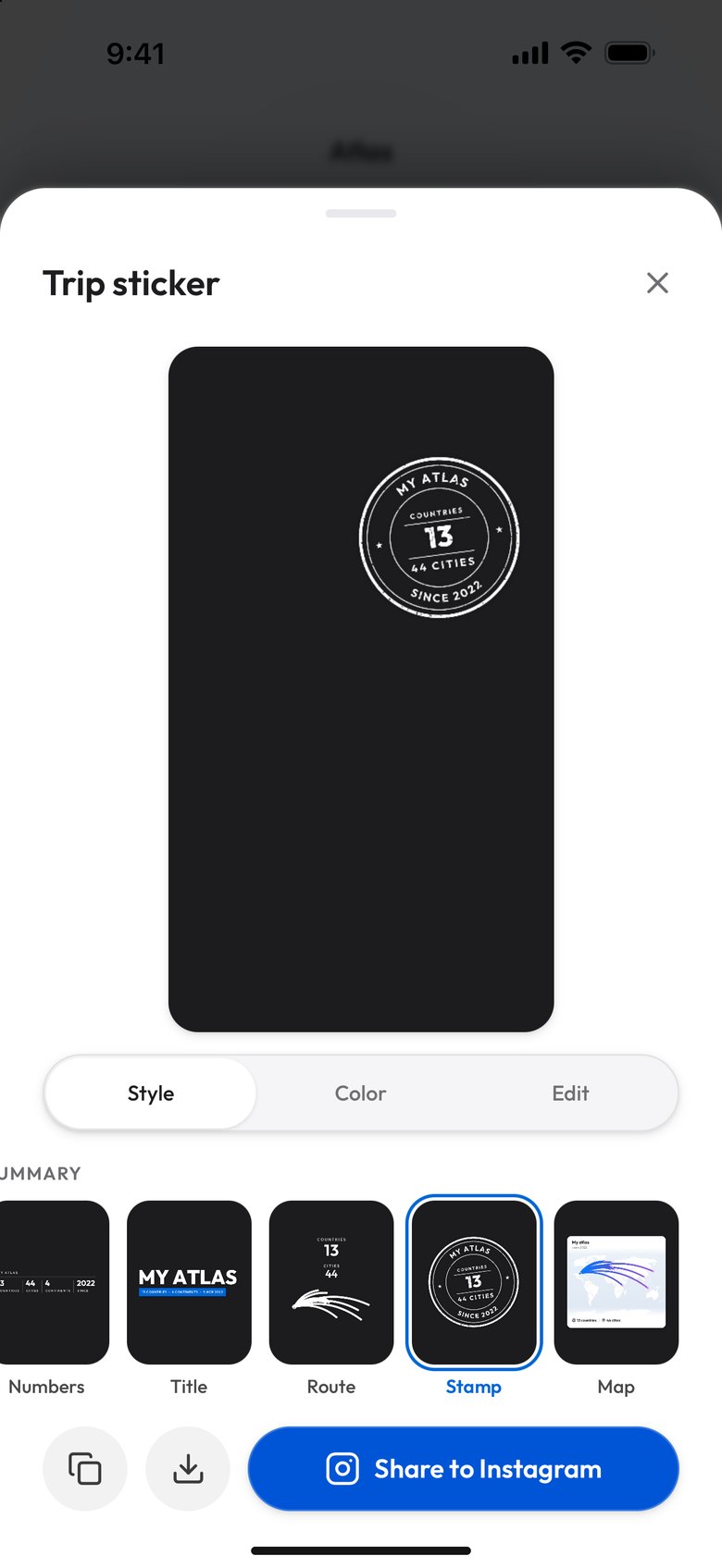
Stamp
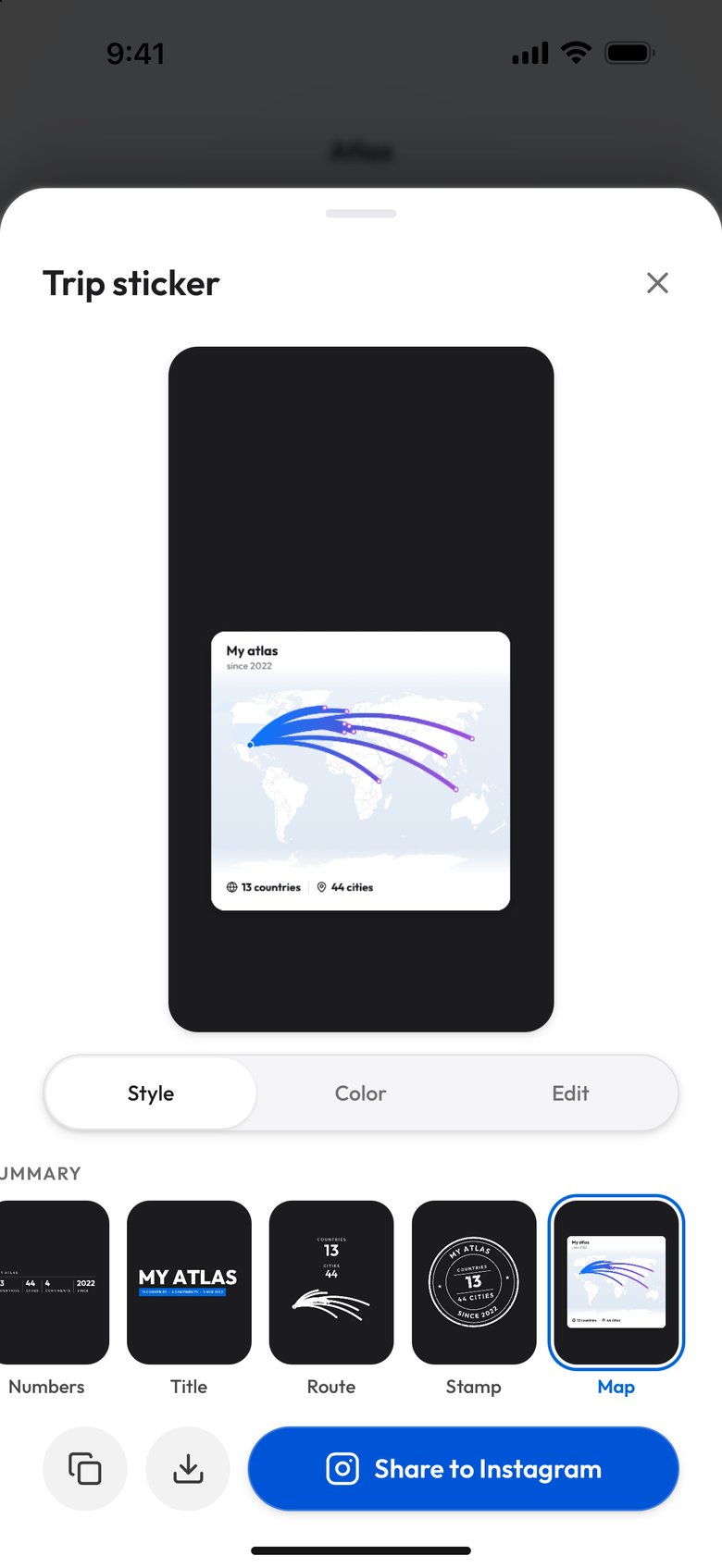
Map
If you want the whole map as a finished picture rather than a layer over a photo, that is a different feature: the Atlas Image tab, covered in how to make a travel map you can share, exports ten complete story and post designs. How the Atlas counts a country is in the countries-visited map guide.
How to add your own sticker to an Instagram story
A sticker of your own trip cannot sit in Instagram's sticker tray, so a custom Instagram story sticker travels as an image. At the bottom of the studio there are three buttons for that: two icons, Copy sticker and Save sticker, and a blue Share to Instagram button.
- Save sticker downloads the sticker as a PNG in a browser. In the iPhone and Android apps it opens the share sheet, where you can save it to your photos.
- Copy sticker puts the image on the clipboard in a browser, so you can paste it somewhere else.
- Share to Instagram opens the same share sheet with the sticker attached, and Instagram is one of the apps in it. It does not open the story editor directly, and where the browser cannot share files it downloads the file instead.
Then, in Instagram:
- Start a story with the photo or video you want behind the sticker.
- Open the sticker tray, choose the photo sticker and pick the saved trip sticker from your camera roll. Its transparent edges stay transparent.
- Drag it into place and pinch to resize it, then post the story as usual.
What the sticker leaves out
A sticker that maps your trip can say more than you meant it to, so the studio holds a few things back on purpose:
- The ends of the route. The line stops a kilometer short of the first and the last photo, so it does not point at the house you left from.
- Exact distances. Kilometers are rounded to the nearest 5 under 100 km, to 10 under 1,000 km and to 50 above, so a sticker prints 480 km rather than the exact figure, and a trip that stays within 10 km prints no distance at all.
- Streets. The Map design draws a region at least 50 kilometers across, with coastlines and borders, and never a street map. Place names come from your album's places, cut down to the town, and a stop whose photos have no place name prints its coordinates instead. Check the names in the Edit tab before you post, because a name you typed yourself is printed as you typed it.
- The album. No link, no logo and no address, and the photo behind the preview is not in the file.
One choice stays with you. Designs such as Place print a line like Day 1 of 7, which tells anyone watching that you are away right now. Posting the sticker after you are home avoids that, the same advice the guide to travel photo privacy gives for the photos themselves.
Trip sticker, Strava stats sticker or Instagram location sticker
The three get compared because they look alike in a story, but they come from different places. Instagram's location sticker is a tappable tag for one place, and it links the story to that place's page on Instagram. Strava's share images put the distance, time and map of one recorded activity over a photo, and they need the activity to have been tracked with GPS while you moved. A trip sticker needs neither: it is built afterward from the photos you took, across every place and day of the trip, and it links nowhere.
Trip stickers: common questions
Who can make a trip sticker in Viallo?
The album's owner, from the album's Share window, from Add trip sticker in the album's ⋮ menu, or from the same item on any of its photos. People holding the album's Admin link, or its Add photos link once they have added a photo, get both Add trip sticker items too. People with the View only link do not. Stickers of your travels as a whole come from your own Atlas.
How do I make my own sticker for an Instagram story?
Make a PNG with a transparent background, save it to your camera roll, then add it to a story with Instagram's photo sticker and resize it with two fingers. Viallo's trip sticker studio makes that PNG from a trip album, with the places, days and kilometers already on it.
Does the sticker include my photo?
No. The studio shows the sticker over a photo so you can judge it, but the file it saves holds only the sticker, on a transparent background, so you can place it over any photo or video in your story.
Does a trip sticker show how I traveled?
No. Viallo has no record of whether you drove, flew or took a train, so a trip sticker shows places, dates, countries and an approximate distance worked out from where your photos were taken, and nothing about transport.
Can I make a sticker from an album without locations?
Yes, a smaller set. An album whose photos carry no location still gets the Numbers, Title and Stamp designs, built from its title and dates, with the real number of photos and days. The route, metro and country designs need photos with a location.