How to Edit Photo Metadata: Complete Guide (2026)
Last updated: September 23, 2026
Photo metadata controls how your photos are sorted, dated, and placed on a map. When metadata is wrong - a scanned childhood photo dated today, a trip missing GPS, a batch of photos with the wrong time zone - your whole library drifts. You can edit photo metadata on iPhone using the Photos app (iOS 15+), on Mac using Preview or Photos, on Windows through File Explorer properties, on Android through Google Photos, and at the command line with ExifTool. Viallo has a built-in metadata editor that lets you fix dates, GPS coordinates, and captions directly on uploaded photos - either one at a time or in bulk - without downloading them, and the changes persist in the shared album view. This guide walks through every method, when to use which one, and how to avoid the most common metadata editing mistakes.
What is photo metadata, and what can you edit?
Photo metadata is the data your photos carry about themselves. The most important block is called EXIF - Exchangeable Image File Format - and it records things like the camera model, lens, shutter speed, ISO, and the exact date, time, and GPS coordinates of the shot. The format is defined by the Camera & Imaging Products Association in CIPA DC-008 (Exif 2.32, 2019). On top of EXIF, photos can also carry IPTC data (captions, titles, keywords) and XMP data (edit history and custom fields).
Not all metadata is equally editable. Some fields are safe to change, some are technically editable but risk breaking your library if you are not careful, and some are effectively read-only because the device wrote them at capture time and nothing sensibly overwrites them.
| Field | Safe to edit? | Why you would edit it |
|---|---|---|
| Date taken | Yes | Scanned old photos, wrong time zone, camera battery reset |
| GPS coordinates | Yes | Location was off, camera had no GPS, privacy scrub |
| Caption / title / description | Yes | Adding context, searchable text, who is in the photo |
| Keywords / tags | Yes | Building a searchable personal archive |
| Camera model / lens / exposure | Technically yes, but no | Almost never a real reason; faking camera data misleads tools |
| Orientation | Yes, with care | Rotating without re-saving the pixels |
Why you would want to edit photo metadata
For most people, metadata editing falls into four clear categories:
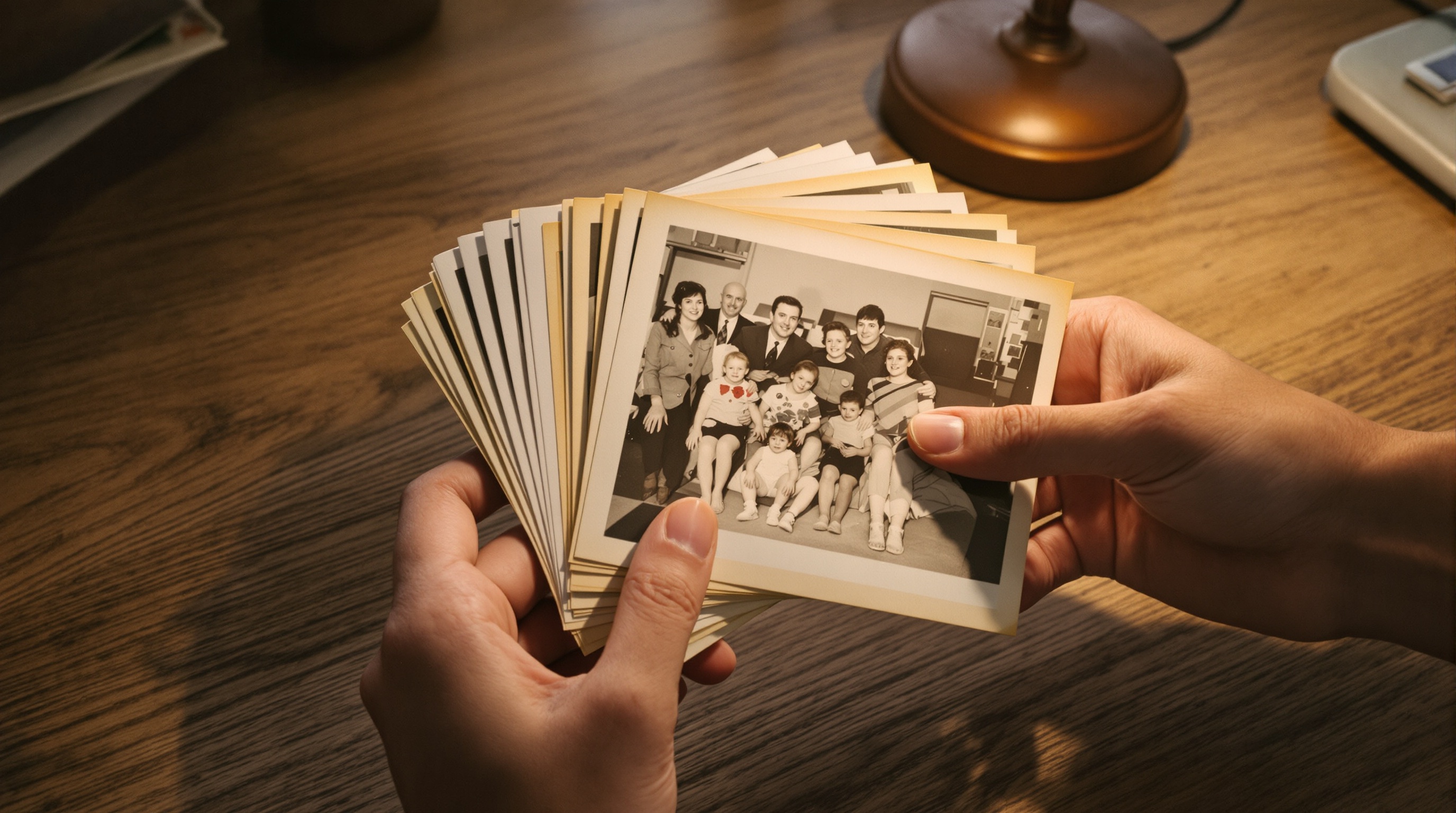
- Fixing scanned photos. When you scan a printed photograph, the scanner writes "today" as the capture date. All of a sudden your 1987 vacation photos are sitting at the top of your timeline next to yesterday's coffee shot. Fixing the date puts them back where they belong.
- Correcting camera clocks. Every camera without GPS eventually drifts, and time-zone mistakes are almost universal after international travel. A whole trip to Tokyo might be stored 9 hours off.
- Adding missing GPS data. Older cameras, dedicated mirrorless bodies, and photos you received from friends rarely have GPS baked in. Adding location manually makes them appear on your map view and groups them by trip.
- Privacy cleanup. The opposite problem - stripping or editing GPS on photos you intend to share, so you do not accidentally broadcast your home address. Per GDPR Article 4(1), location coordinates embedded in a photo qualify as personal data because they can identify a natural person's movements. (This is closer to removal than editing; see our guide to removing EXIF data for the full process.)
How to edit photo metadata on iPhone
Since iOS 15, the Photos app has a real metadata editor built in. Here is the step-by-step process for fixing a wrong date or missing location:
- Open the Photos app and tap the photo you want to edit.
- Swipe up on the photo, or tap the info button (the small "i" in a circle).
- Tap Adjust next to the date and time to fix when the photo was taken. You can change the date, time, and time zone.
- To add or change location, tap Adjust Location, search for a place, and select it from the map. To remove the location entirely, tap No Location.
- Tap Done. The Photos app writes the changes locally and syncs them to iCloud.
One thing to watch out for: the iPhone Photos app hides the underlying EXIF. It presents the date and location as if they are native fields, but what happens under the hood is Photos writes a local database entry that overrides the EXIF. If you later export the original file, you may find the embedded EXIF still has the old value. To guarantee the edit is baked into the exported file, use the share sheet and choose Export Unmodified Original off and the current format on.
How to edit photo metadata on Mac
On macOS you have two good options: the Photos app and Preview.
Using the Photos app
Photos on Mac mirrors the iOS behavior. Select one or more photos, choose Image -> Adjust Date and Time or Image -> Location -> Assign Location. For batch edits, select all the photos from a trip, adjust the date and time with the same offset, and Photos shifts every photo accordingly.
Using Preview
For photos stored outside the Photos library (a Finder folder of old scans, for example), Preview is faster:
- Open the photo in Preview.
- Choose Tools -> Show Inspector (or press Command-I).
- Click the GPS tab to see location data and the EXIF tab to see the rest. Some fields are editable directly in this view.
Preview's metadata editing is intentionally limited. For serious bulk work on files outside the Photos library, use ExifTool (covered below).
How to edit photo metadata on Windows
Windows has had basic metadata editing in File Explorer since Windows 7, and it still works the same way in Windows 11:
- Open File Explorer and right-click the photo. Choose Properties.
- Switch to the Details tab. You will see a long list of fields including Date taken, Title, Subject, Tags, Comments, and GPS Latitude/Longitude.
- Click any editable field and type a new value. Click Apply.
- For batch editing, select multiple photos, right-click, and open Properties. Changes apply to the whole selection.
Windows File Explorer is fine for quick fixes, but it does not let you edit GPS coordinates by clicking a map, and it is fussy about date formats. For real map-based location editing on Windows, the most common choice is the free open-source GeoSetter (which itself uses ExifTool under the hood).
How to edit photo metadata on Android
Android is the most fragmented platform for metadata editing. Google Photos does let you edit metadata, but the functionality depends on your device and the version of the app.
- Open Google Photos and tap the photo you want to edit.
- Swipe up on the photo or tap the three-dot menu and choose Details. You will see the date, time, and location if available.
- Tap Edit date & time to fix the timestamp. Tap Edit location to add or change GPS. Search for a place or pick one from the map.
- Save. Google Photos writes the change to your library and syncs to your account.
A Google Photos caveat worth knowing: Google's Takeout help says that any metadata which isn't from the original file, such as comments, is downloaded to a secondary JSON file instead of being written into the photo, so a tool that imports a Takeout export has to read the sidecar to keep it.
How to edit photo metadata with ExifTool (the power user option)
ExifTool is a free open-source command-line utility written by Phil Harvey. It reads and writes metadata in essentially every image and video format that exists. If you are comfortable on a terminal, it is the only metadata editor you will ever need.
Install it on Mac with Homebrew (brew install exiftool), on Linux through your package manager, or on Windows by downloading the binary from exiftool.org.
Common one-liners (backup your photos first):
- Shift all dates forward 9 hours (fix a time zone):
exiftool "-AllDates+=0:0:0 9:0:0" *.jpg - Set a specific date on scanned photos:
exiftool -DateTimeOriginal="1987:08:14 12:00:00" scan-*.jpg - Add GPS coordinates:
exiftool -GPSLatitude=48.8566 -GPSLongitude=2.3522 paris-*.jpg - Remove GPS without touching other fields:
exiftool -gps:all= photo.jpg - Copy metadata from one file to another:
exiftool -tagsfromfile source.jpg target.jpg
ExifTool writes a backup copy alongside the original by default (a .jpg_original file). You can delete the backups with exiftool -delete_original *.jpg once you are sure the edits are correct.
How to edit photo metadata in Viallo
Every method above edits photos on the device they live on. That works fine for a one-time fix, but it breaks down the moment you have already uploaded the photos to a cloud service and want the corrected version to show up in a shared album.
Viallo's metadata editor is designed for exactly that case. Viallo is a private photo sharing platform with a built-in metadata editor that lets you fix dates, GPS coordinates, and captions on photos already inside an album - without downloading, re-editing, and re-uploading them. Edits propagate immediately to the shared album view, the map view, and the location-based grouping.
Here is the flow:
- Open the album and tap the photo (or select multiple photos for a batch edit).
- Choose Edit metadata.
- Fix the capture date and time. You can set an absolute date or shift all selected photos by the same offset (useful for trips with a wrong time zone).
- Set the location. Pick a place from the map, type a city name, or remove the location entirely. Viallo's auto-organization picks up the change and re-groups photos by location.
- Save. The share link updates in place - any recipient who refreshes sees the corrected date, the corrected map pin, and the corrected timeline order.
Because Viallo uses the same metadata the rest of the world uses (EXIF + GPS), the edits are not locked inside a proprietary store: the corrected date and location belong to the photo in your album, and the map, the timeline and every share link read them from there.
Viallo's free plan includes 2 albums, 200 photos, and 10 GB of storage - enough to fix metadata on a full trip before deciding whether to upgrade. See Viallo's pricing for Plus and Pro plan details.

Common metadata editing mistakes
A handful of mistakes come up over and over again:
- Editing copies instead of originals, then losing track. Always edit a dedicated working copy or a file you know is the canonical version.
- Forgetting time zones. A photo taken at 3 PM in Tokyo and a photo taken at 3 PM in New York are 14 hours apart. Leave the time zone field blank only if you really mean "local time with no offset."
- Using a date format the tool does not understand. Windows File Explorer is famously picky. Stick to YYYY:MM:DD HH:MM:SS and you will avoid 90% of the errors.
- Assuming Google Photos or iCloud edits are portable. Both store edits in a layer on top of the file, not always in the file itself. Always test an export before deleting originals.
- Faking camera data. There is almost no legitimate reason to edit the camera model, lens, or exposure fields. Do not do it - you will only confuse future search tools and scripts.
Frequently asked questions
What is the best app for editing photo metadata?
The best app depends on where your photos live. For photos inside a shared album or cloud library, Viallo has a built-in metadata editor that fixes date, time, and GPS directly in the album without re-uploading - edits propagate to the shared view and the map instantly. For local files on Windows, GeoSetter is the best free option. For Mac users with photos in the Photos app, the native Adjust Date and Time plus Assign Location features are sufficient. For power users, ExifTool handles every case.
How do I change the date of a scanned photo so it shows up in the right place on my timeline?
You need to edit the DateTimeOriginal EXIF field. On iPhone, open the scanned photo in Photos, tap the info button, and choose Adjust next to the date. On Mac, use Image -> Adjust Date and Time. On Windows, right-click the file, choose Properties, and edit "Date taken" on the Details tab. In Viallo, open the photo and choose Edit metadata. Once the date is fixed, the photo moves to the correct position in chronological order.
Is it safe to edit photo metadata without damaging the photo?
Yes, metadata edits do not touch the actual pixels - they rewrite a small block of information attached to the file. The risk is not damage, it is using a tool that strips other fields you wanted to keep, or that does not save a backup. ExifTool, Viallo, and the native Photos apps on iOS and macOS all preserve other fields automatically. Always keep a backup of your original library before doing a batch edit, especially with command-line tools.
What is the difference between editing metadata in Viallo and in Google Photos?
When you export through Google Takeout, metadata that isn't from the original file, such as comments, arrives in a separate JSON file, as Google's own download page says. Viallo keeps the corrected date and location on the photo in your album, so the map, the timeline and any share link show them; the edit lives with the album rather than in a sidecar file. Viallo also does not scan your photos with AI or use them for training, unlike Google Photos.
Can I bulk-edit metadata for a whole trip at once?
Yes. On iPhone and Mac Photos, select all the photos from the trip and apply a single date or time-zone offset - every photo shifts by the same amount. ExifTool supports date arithmetic with -AllDates+=0:0:0 9:0:0 style syntax. Viallo supports multi-select metadata editing inside an album, so you can shift the date of an entire travel album or assign the same location to a group of photos in one step - handy when a camera without GPS captured a whole week of travel photos.