Create a Shared Photo Album: 5 Ways Compared
Last updated: October 19, 2026
The best way to create a shared photo album depends on who you're sharing with. Google Photos works best for Android users sharing with other Google account holders. iCloud is simplest for Apple-only groups. Viallo is the best option when recipients don't have the same platform or don't want to create an account - you get a private, unguessable link that the app creates with no expiry date, and anyone can view the full album in their browser. This guide covers 5 methods step by step, with honest trade-offs for each.
Why Creating a Shared Photo Album Still Isn't Easy
You'd think that in 2026, sharing a batch of photos with a group of people would be a solved problem. It's not. Every method has friction: platform lock-in, account requirements, quality loss, storage limits, or privacy trade-offs.
The core tension is between convenience and control. Messaging apps are convenient but destroy quality and bury photos in chat history. Cloud platforms preserve quality but require everyone to have the same account. Dedicated sharing apps solve both problems but add another service to manage.
I've tested every major method for creating shared photo albums and sorted them by the one factor that actually determines which you should use: whether your recipients already have accounts on the same platform you do.
5 Ways to Create a Shared Photo Album (Compared)
A shared photo album is a collection of photos that multiple people can view - and sometimes contribute to - through a single link or shared space. Viallo is a private photo sharing platform that lets you create photo albums and share them through a link. Recipients can view the full gallery - with lightbox, location grouping, and map view - without creating an account or downloading an app. Photos are stored in full resolution, and every share link is private by default.
| Feature | Google Photos | iCloud | Viallo | Dropbox | |
|---|---|---|---|---|---|
| Account required to view | No (link viewing) | Apple ID | No | No (link viewing) | WhatsApp account |
| Full resolution | Yes (Original quality) | Yes | Yes | Yes | No (heavy compression) |
| Password protection | No | No | No (unguessable private links instead) | Yes (Pro) | No |
| Contributors can add photos | Yes | Yes | Yes - no account needed | Yes | Yes (in chat) |
| Gallery viewing experience | Good | Good (Apple only) | Full lightbox + map | File list only | Chat scroll |
| Free tier | 15 GB shared | 5 GB shared | 2 albums, 200 photos | 2 GB | Unlimited (compressed) |
| AI photo scanning | Yes | On-device only | No | No | No |
Method 1: Google Photos Shared Albums
Google Photos is the simplest option if everyone in your group has a Google account. The sharing experience is polished, the storage is generous, and the collaborative features work well.
How to create a shared album in Google Photos:
- Step 1: Open Google Photos and tap the "+" button or go to Library and select "New album."
- Step 2: Name the album and add photos from your library.
- Step 3: Tap the "Share" button and enter email addresses or select contacts.
- Step 4: Toggle "Collaborative" to let others add their own photos.
Best for: Groups where everyone has Gmail or a Google account. Great for ongoing shared albums like a family album that grows over time.
Limitations: Recipients can view the whole album from the link; adding photos needs a Google account only when Collaborate is off. No password protection. Google scans all uploaded photos for AI features and ad targeting signals. Per GDPR Article 6, lawful processing of personal data requires a defined legal basis - "consent" via terms of service is one of six grounds, and EU users retain the right to withdraw it. Storage counts against your 15 GB free limit.
Method 2: iCloud Shared Albums
iCloud Shared Albums are the most frictionless option if everyone in the group uses Apple devices. Albums sync automatically across iPhone, iPad, and Mac with no extra apps.
How to create a shared album in iCloud:
- Step 1: Open the Photos app on your iPhone or Mac.
- Step 2: Go to Albums and tap the "+" button, then select "New Shared Album."
- Step 3: Name the album and add contacts by email or phone number.
- Step 4: Add photos and tap "Post."
Best for: Apple-only families and friend groups. The integration with the native Photos app makes it feel invisible.
Limitations: Android users can't participate properly. Shared Albums created in version 26 or earlier have separate storage that doesn't count against your iCloud plan, but they resize photos to a maximum of 2048 pixels on the long edge - not full resolution. No password protection. Maximum 5,000 photos per shared album created in version 26 or earlier.
Method 3: Viallo Private Albums
Viallo solves the biggest problem with shared photo albums: requiring everyone to have the same app or account. You create an album, upload photos, and share a link. Recipients open the link in any browser on any device and see the full album with lightbox viewing, location grouping, and an interactive map - no account, no download, no signup.
How to create a shared album on Viallo:
- Step 1: Create a free account at viallo.app (takes 30 seconds).
- Step 2: Create a new album and give it a name.
- Step 3: Upload photos - they're stored in full resolution with no compression.
- Step 4: Open Share on the album (on a phone it is in the three-dot menu). The Share sheet makes a View only link the first time it opens, ready to copy. The address cannot be guessed and stays the same each time you open Share. Revoke, the last item in its menu under Links to this album, turns it off at once, and Create in the emptied row makes a new link with a new address.
- Step 5: Send the link to anyone. They view the album instantly in their browser.
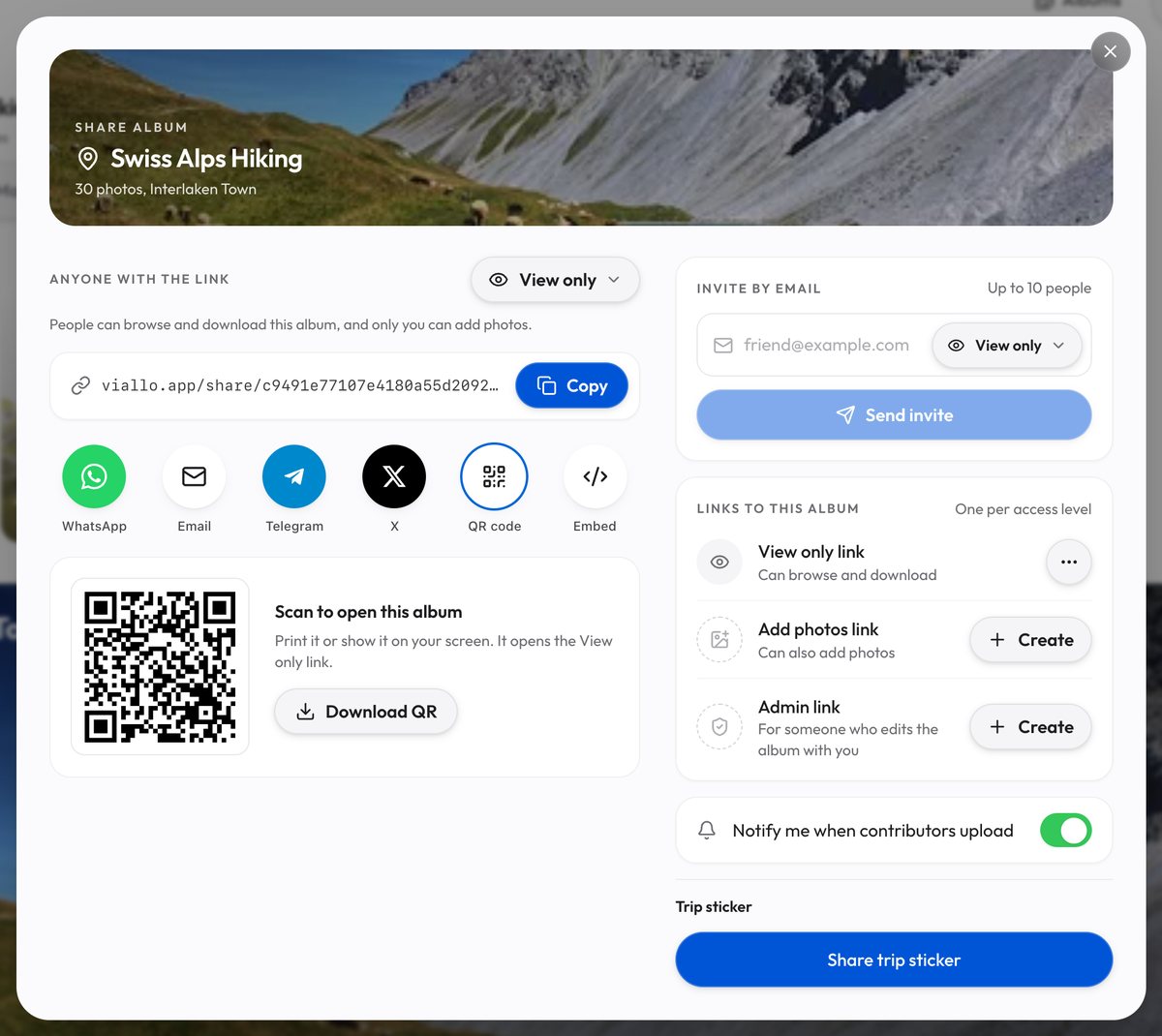
Best for: Mixed groups (iPhone and Android users), sharing with people who won't download an app (grandparents, distant family, event guests), and anyone comparing private link-sharing options.
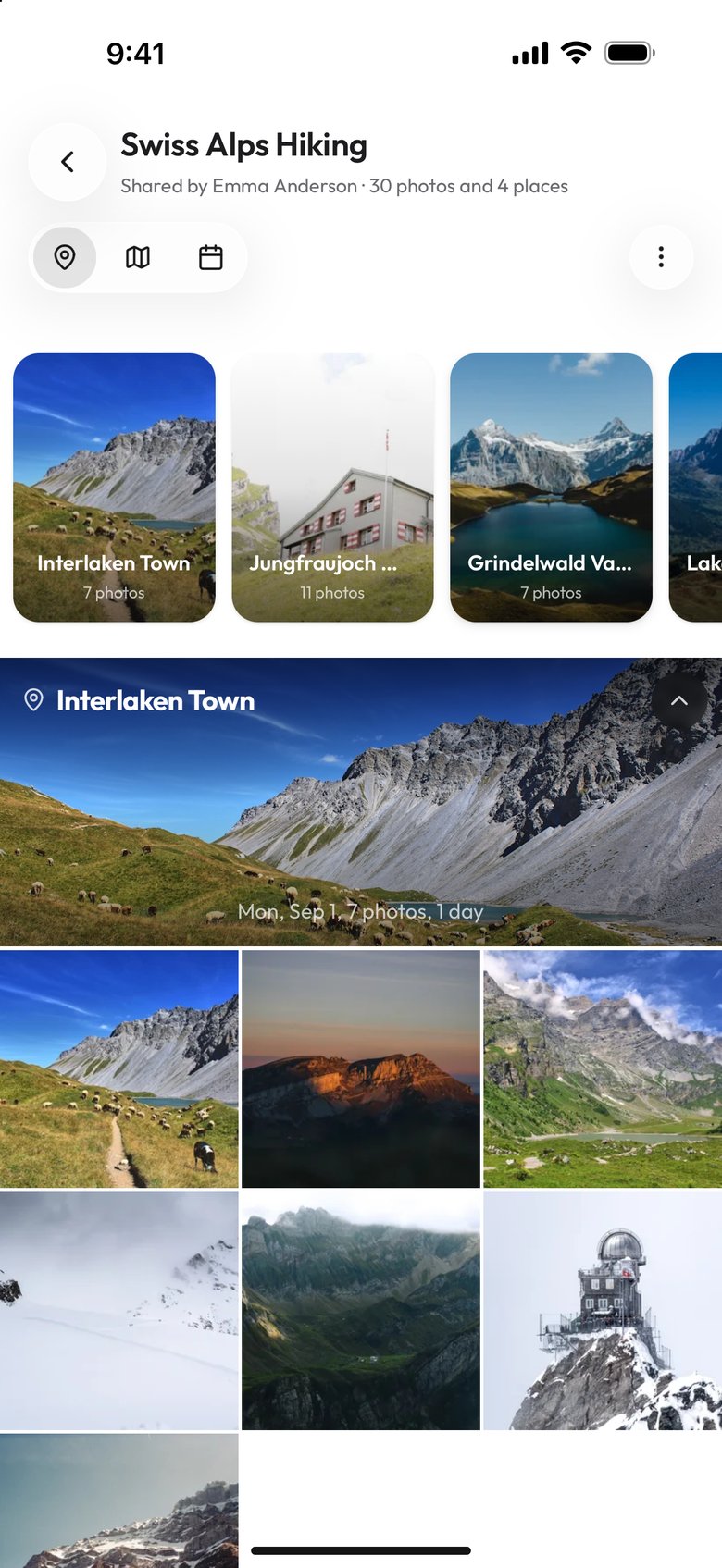
Limitations: Free plan is limited to 2 albums and 200 photos. Viallo's Plus plan ($6.99/month) raises that to 20 albums and 5,000 photos with 200 GB of storage.
Methods 4 and 5: Dropbox and Messaging Apps
Dropbox / Google Drive (Method 4)
Cloud storage services work for sharing photos, but the experience is more "file download" than "photo album." You get a folder of files, not a gallery. That said, Dropbox and Google Drive preserve full resolution and let you share with a link.
Best for: Sharing high-resolution files with photographers or professionals who need to download originals. Check our comparison of Google Drive for photos for a deeper look.
Limitations: No gallery view, no lightbox, no location grouping. Recipients see a list of files. Free storage is limited (2 GB for Dropbox, 15 GB for Google Drive shared across all services).
WhatsApp / Messaging Apps (Method 5)
Messaging apps are the most common way people share photos today - and the worst for quality. WhatsApp, Telegram, and iMessage all compress photos sent through chat, though Telegram offers an uncompressed send-as-file route. The convenience is unmatched, but the trade-off is permanent quality loss.
Best for: Quick, casual sharing where quality doesn't matter. Sharing a single photo or a handful of images that don't need to be preserved.
Limitations: Heavy compression (WhatsApp recompresses photos before sending). Photos get buried in chat history and are impossible to browse as an album later. No organization, no album structure, no location grouping.
How to Choose the Right Method
The right method depends on one question: do your recipients all have the same platform?
- Everyone has Google accounts: Use Google Photos shared albums. The collaborative features and automatic backup make it the easiest option for Google households.
- Everyone has Apple devices: Use iCloud Shared Albums. Native integration with the Photos app means zero friction.
- Mixed group or no shared platform: Use Viallo. The link- based sharing model works regardless of what phone, browser, or operating system your recipients use. No one needs to download anything.
- Professional delivery (full-res downloads needed): Use Dropbox or Google Drive. The file-based model is better for photographers delivering client work. See our guide on photographer client delivery for more.
- Quick casual sharing: Use your messaging app of choice. Just know that quality will be lost permanently.
For families, Viallo's no-account viewing is the biggest differentiator. Grandparents, aunts, uncles, and distant relatives don't need to download an app or create an account. They open a link and see the full album. That's how sharing with grandparents should work.

If privacy is your primary concern, read our full photo sharing privacy guide for a deeper comparison of what each platform does with your data.
Frequently Asked Questions
What is the best app for creating a shared photo album?
The best app depends on your audience. For Android groups, Google Photos is the most seamless. For Apple-only groups, iCloud Shared Albums integrate natively with your phone. For mixed groups where not everyone has the same platform, Viallo is the best choice - recipients view the full album in their browser without creating an account or downloading an app. Every Viallo link is private by default and cannot be guessed, and there's no AI scanning of your photos.
How do I create a shared photo album without everyone needing an account?
Create an album on Viallo, upload your photos, and generate a shareable link. Send the link to anyone - they open it in their browser and see the full album with lightbox viewing, location grouping, and map view. No account, no app, no signup required. Dropbox also supports link-based viewing, but the experience is a file list rather than a photo gallery. Google Photos requires a Google account for full album access.
Is it safe to create a shared photo album online?
It depends on the platform's privacy practices. Google Photos scans uploaded photos for AI features. Apple's iCloud performs on-device analysis only. Viallo stores photos without any scanning or AI analysis and gives every album a private, unguessable share link that can be revoked anytime. Under GDPR Article 17, EU residents also hold an enforceable right to erasure - controllers must delete personal data on request absent an overriding legal interest. For sensitive photos, always choose a platform that offers access controls beyond just a link.
What is the difference between Google Photos shared albums and iCloud shared albums?
Google Photos shared albums preserve original photo quality and work across all platforms, and shared links open without an account; adding photos needs a Google account only when Collaborate is off. iCloud shared albums integrate natively with Apple devices but resize photos to a maximum 2048-pixel long edge and only work for Apple users. Neither offers password protection. Viallo keeps full-resolution originals behind private share links while working on any device without requiring any account from recipients.
Can my family view a shared photo album without downloading an app?
Yes, if you use a link-based sharing platform. Viallo's shared albums open directly in any web browser - your family sees the full gallery with lightbox, location grouping, and map view without downloading anything. Google Photos link sharing offers limited viewing without an account. iCloud shared albums open in a browser without the Photos app. WhatsApp and messaging apps share photos individually, not as browseable albums.