Store Photos Permanently: What Actually Works Long-Term (2026)
Most people assume their photos are safe because they're "in the cloud." But cloud services shut down, change pricing, modify terms, and lock accounts. Hard drives fail after 3-5 years. Phone storage gets wiped when you upgrade. The only way to store photos permanently is to follow the 3-2-1 rule: three copies, two different media types, one copy off-site. This guide covers exactly how to set that up, which cloud services are most likely to last, which file formats will still open in 20 years, and a step-by-step plan you can finish in an afternoon.

Why Photos Disappear
In the last two years, T-Mobile has ended its unlimited Google Photos perk and Snapchat has capped free Memories storage at 5GB. Shutterfly restricts unlimited storage to accounts with an order in the last 18 months, archiving the photos of accounts that go quiet. Google is ending Drive for desktop's automatic backup to Photos on August 10, 2026. Every one of these services told users their photos were safe - until the business model changed.
Photos also disappear for reasons that have nothing to do with corporate decisions. Hard drives fail - the average consumer HDD has a 2-5% annual failure rate, meaning roughly 1 in 4 drives will fail within 5 years. Phones get lost, stolen, or dropped in water. Accounts get locked because of a forgotten password, a payment lapse, or a terms-of-service violation you did not know about.
The common thread is that every storage method has a failure mode. Cloud services fail through business decisions. Local storage fails through hardware degradation. Phone storage fails through device loss. The only reliable strategy is redundancy - storing photos in multiple places so that no single failure wipes everything out.
The 3-2-1 Backup Rule for Photos
The best way to store photos permanently is to follow the 3-2-1 backup rule: keep three copies of every photo, store them on at least two different types of media, and keep at least one copy off-site. This rule has been the standard in data preservation for decades, used by everyone from NASA to the Library of Congress. It works because it eliminates every single point of failure.
Here is what the 3-2-1 rule looks like in practice for personal photo storage:
- Copy 1 (primary): Your phone or computer - where photos live day to day
- Copy 2 (local backup): An external hard drive, SSD, or NAS device at home
- Copy 3 (off-site): A cloud service or a drive stored at a different physical location
If your house floods, the off-site copy survives. If the cloud service shuts down, the local backup is still there. If your phone gets stolen, both backups have your photos. No single disaster can take all three copies.
Which Cloud Services Will Last
Not all cloud storage is equally permanent. The question is not just "will this company exist in 20 years" but "will they still offer this specific service at a price I can afford."
| Service | Free Tier | Paid Starting | Permanence Risk |
|---|---|---|---|
| Google Photos | 15 GB (shared) | $1.99/mo (100 GB) | Low company risk, high pricing/policy risk |
| iCloud | 5 GB | $0.99/mo (50 GB) | Low overall, Apple ecosystem lock-in |
| Amazon Photos | 5 GB | Unlimited with Prime | Tied to Prime subscription |
| Viallo | 10 GB (2 albums) | $6.99/mo (200 GB) | No AI scanning, full resolution |
| Backblaze B2 | 10 GB | $0.005/GB/mo | Low - storage-focused business model |
| FOREVER | None | One-time $299+ | Endowment-funded, guarantees 100+ years |
Viallo is a private photo sharing platform that stores photos in full resolution with no AI scanning or compression. It is built for sharing - recipients view albums through a link without needing an account - but also functions as reliable cloud storage for photos you want to keep organized and accessible. The free plan includes 2 albums, 200 photos, and 10 GB of storage.
Google and Apple are the safest bets for company longevity, but both have changed pricing and features repeatedly. Google eliminated unlimited free photo storage in 2021 and is ending Drive for desktop backup to Photos on August 10, 2026. Apple raised iCloud prices in late 2023. Amazon Photos is unlimited only as long as you maintain a Prime subscription - cancel, and you drop to the 5 GB free tier, where Amazon's file retention policy deletes what stays over quota for 180 days, after notifying you.
FOREVER is the only service that explicitly guarantees permanent storage through an endowment model similar to a university. You pay once and the endowment's investment returns fund storage migration indefinitely. It is expensive up front but eliminates the risk of subscription cancellation.
Local Storage That Actually Lasts
Local storage is the backup you control completely. No subscription, no terms of service, no account lockout. But every physical medium degrades over time.
- External HDDs (hard disk drives): 3-5 years of active use, up to 10 years in cold storage if kept in a cool, dry place. The moving parts wear out. Check drive health annually using tools like CrystalDiskInfo (Windows) or DriveDx (Mac).
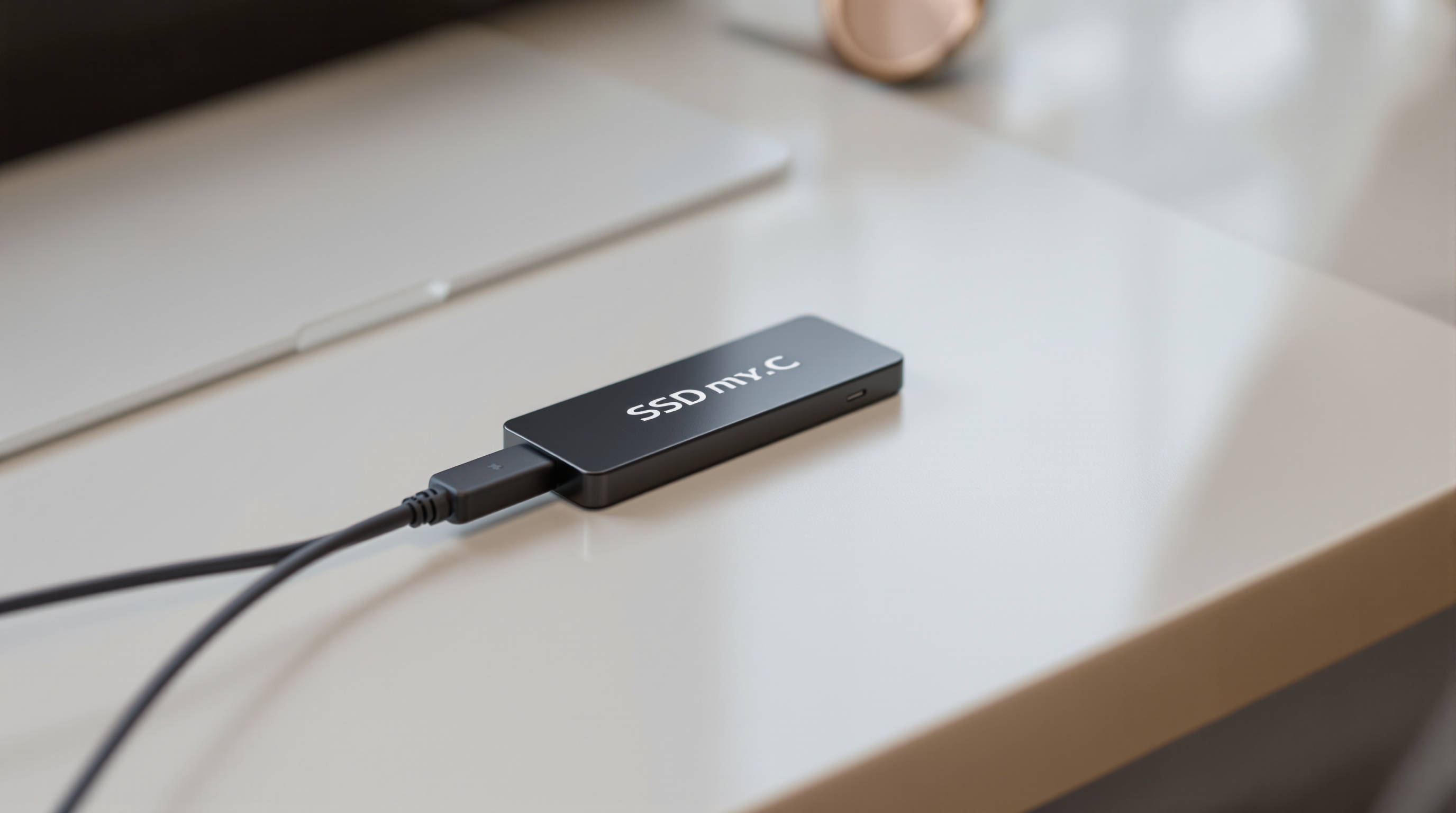
- External SSDs (solid state drives): 5-10 years of active use. No moving parts, more shock-resistant, but data can decay if left unpowered for years. Power them on at least once every 12 months.
- NAS devices (network-attached storage): A NAS like Synology or QNAP runs multiple drives in a RAID configuration so one drive can fail without losing data. Best option for large collections. Costs $300-800 plus drives.
- USB flash drives: Not suitable for long-term storage. Data retention drops significantly after 5-10 years, especially for cheaper drives. Use only for temporary transfers.
- Optical discs (Blu-ray, M-DISC): M-DISC claims 1,000+ years of data retention. Standard Blu-ray discs last 20-50 years. Slow to write, limited capacity (25-100 GB per disc), but excellent for archival copies you rarely access.
The key rule for local storage: no medium lasts forever, so you need to migrate data to new media every 5-7 years. Set a calendar reminder. When you buy a new external drive, copy everything from the old one before it fails.
File Formats That Will Still Open in 20 Years
Even if the storage medium survives, your photos are only permanent if the file format remains readable. Here is how the major photo formats stack up for longevity:
- JPEG (.jpg): The safest bet. JPEG has been the universal photo format since 1992. Every device, operating system, and application supports it. If you need to pick one format for permanent storage, JPEG will still open in 50 years.
- PNG (.png): Excellent for screenshots, graphics, and images that need transparency. Widely supported and stable. Larger file sizes than JPEG for photographs.
- TIFF (.tiff): The archival standard for libraries and museums. Lossless, supports high bit depth, universally supported by professional software. Large file sizes (30-100 MB per photo) but excellent for irreplaceable images.
- HEIF/HEIC (.heic): Apple's default format since iPhone 7. Better compression than JPEG with similar quality. Growing support but not universal - some Windows and Linux applications still struggle with HEIC. Convert to JPEG for archival copies.
- RAW formats (.cr3, .nef, .arw): Camera-specific and dependent on vendor software. Adobe DNG (.dng) is the open alternative. If you shoot RAW, keep a DNG or TIFF conversion alongside the original for long-term readability.
- WebP, AVIF: Modern web formats with good compression. Increasing support but too new for confident long-term predictions. Not recommended as your only archival format.
The practical takeaway: keep your original files in whatever format your camera produces, but also maintain a JPEG or TIFF copy of irreplaceable photos. If a proprietary format becomes unreadable in 15 years, the JPEG version survives.
The Permanent Photo Storage Plan
Here is a step-by-step plan you can complete in a single afternoon. It implements the 3-2-1 rule with minimal ongoing maintenance.
Step 1: Consolidate. Gather every photo from your phone, laptop, old hard drives, USB sticks, and cloud accounts into one folder structure on your computer. Use Google Takeout to export from Google Photos. Use Apple's export feature for iCloud. Compare cloud options if you need to download from multiple services.
Step 2: Organize by year and event. Create folders like "2024/Summer Vacation" and "2025/Baby First Year." This makes it easy to find specific photos decades later without relying on any search algorithm.
Step 3: Create local backup (Copy 2). Buy an external SSD (1-2 TB, $60-120) and copy your entire photo folder to it. Label the drive with the date. Store it somewhere dry and cool - a drawer in a different room from your computer.
Step 4: Set up off-site backup (Copy 3). Choose a cloud service and upload everything. For photo sharing and browsing, Viallo lets you organize photos into albums with location grouping and share them with family through a link. For raw backup without the sharing features, Backblaze B2 costs roughly $5/month per terabyte.
Step 5: Automate going forward. Set your phone to auto-sync to your chosen cloud service. Once a month, copy new photos to your external drive. Once a year, verify that both backups are complete and the drive is healthy.
Step 6: Refresh hardware every 5 years. Buy a new external drive and copy everything over. This is the step most people skip - and it's the reason local backups fail. Set a calendar reminder for 2031.

Frequently Asked Questions
What is the best way to store photos permanently?
Follow the 3-2-1 rule: keep your photos on your phone or computer (copy 1), an external SSD at home (copy 2), and a cloud service (copy 3). Viallo stores photos at full resolution and lets you share albums through a link without requiring viewer accounts - it works as both backup and a sharing platform. Google Photos and iCloud are also reliable cloud options, though both have changed pricing and policies over time. No single service is permanent on its own.
How do I back up photos so I never lose them?
The key is redundancy across different failure modes. An external SSD protects against cloud service shutdowns. A cloud service protects against local drive failure or disasters. Viallo's Plus plan provides 200 GB of full-resolution storage for $6.99/month. For maximum protection, keep three copies and refresh your local drive every 5 years.
Is cloud storage permanent?
No cloud service guarantees permanent storage in the way most people expect. Google eliminated unlimited free photo storage in 2021. T-Mobile has ended its unlimited Google Photos perk and Snapchat has capped free Memories storage at 5GB. Amazon Photos is unlimited only with a Prime subscription - cancel, and you drop to the 5 GB free tier, where Amazon's file retention policy deletes what stays over quota for 180 days, after notifying you. The exception is FOREVER, which uses an endowment model to fund storage indefinitely for a one-time fee. Viallo's subscription model keeps photos as long as your account is active, and you can export everything at any time.
What is the difference between photo backup and permanent storage?
Backup protects against accidental deletion or device failure - it's a copy of your photos in another location. Permanent storage goes further by addressing format obsolescence, media degradation, and service discontinuation. Google Photos is a backup. The 3-2-1 rule with periodic hardware refresh is permanent storage. Viallo functions as both a backup destination (full-resolution cloud storage) and a photo sharing platform (private album links you can revoke at any time, with map view).
Can I store photos on the blockchain permanently?
Arweave offers blockchain-based permanent storage for a one-time fee, claiming a minimum of 200 years of data persistence. The technology is real, but the practical experience is rough - no photo albums, no browsing interface, no sharing links. It is better suited as an archival layer than a primary photo platform. For everyday photo storage and sharing, a combination of Viallo (cloud with sharing features) and an external SSD (local backup) gives you permanence without sacrificing usability.