How to Send Large Photos: 6 Methods That Actually Work (2026)
Quick take: Most email services cap attachments at 20-25 MB, but a single uncompressed photo from a modern smartphone can hit 20 MB or more. To send large photos without destroying quality, you have six real options: cloud storage links, dedicated photo sharing platforms like Viallo, file transfer services like WeTransfer, AirDrop or Nearby Share, compressed archives, and physical transfer. The best method depends on how many photos you're sending, whether quality matters, and whether the recipient needs an account. For most people, sharing a link to a photo album is faster and better than trying to attach files to an email.
Why Your Photos Are Too Large for Email
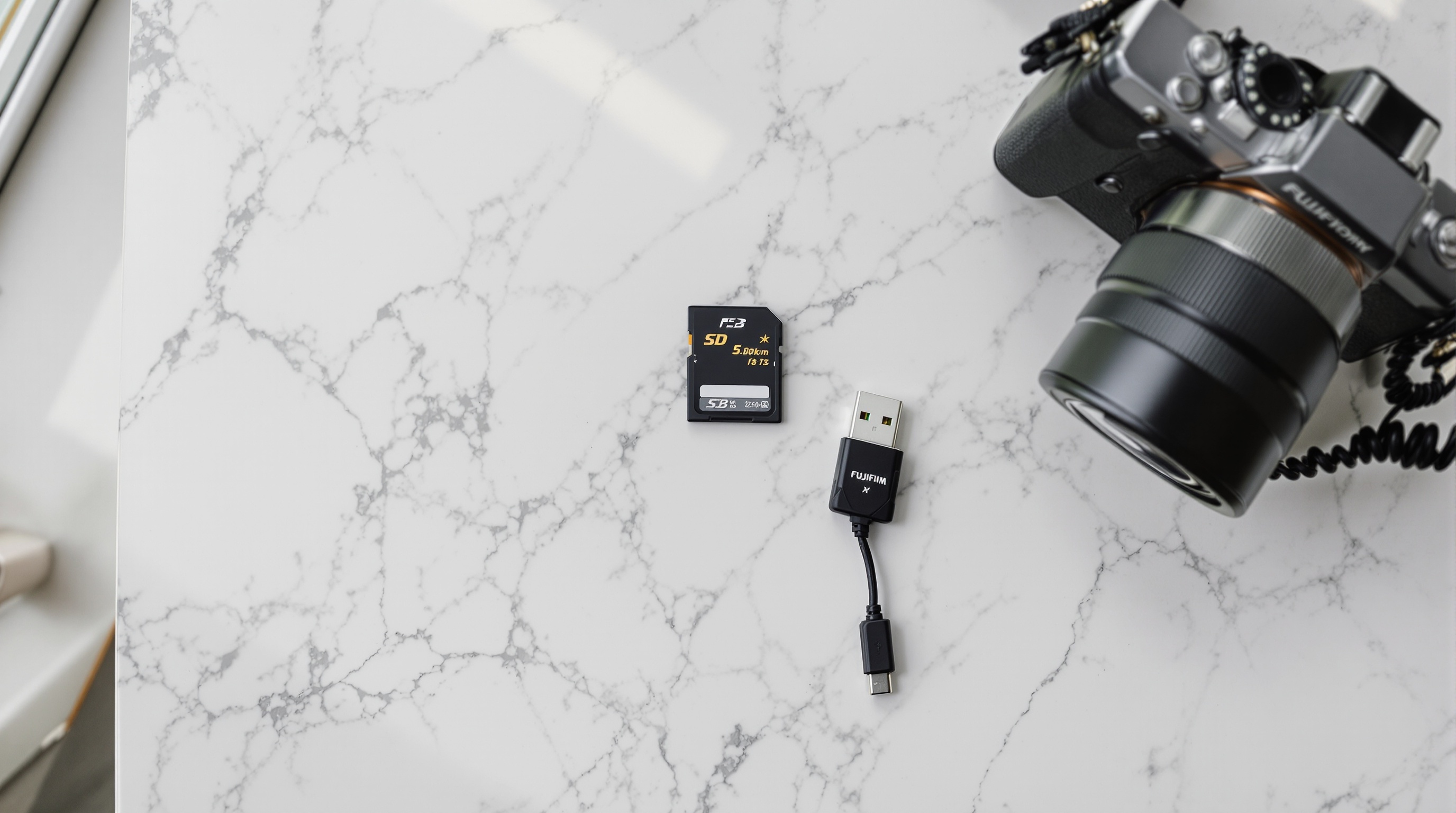
The gap between camera quality and email limits has never been wider. An iPhone 16 Pro shoots 48-megapixel photos that can be 15-25 MB each in HEIF format. A Samsung Galaxy S25 Ultra goes up to 200 megapixels. A single RAW file from a mirrorless camera can be 50-80 MB.
Meanwhile, email attachment limits haven't changed in years:
- Gmail: 25 MB per email
- Outlook: 20 MB per email
- Yahoo Mail: 25 MB per email
- Apple Mail (iCloud): 20 MB per email (Mail Drop handles up to 5 GB)
- ProtonMail: 25 MB per email
That means a single high-resolution photo can exceed the entire attachment limit. Trying to email 10 vacation photos? You'd need 200-250 MB of space in a system designed for 25 MB. The math doesn't work.
Some email clients automatically compress photos before sending, but this destroys quality. Others silently downscale images to fit the limit. Neither solution is great if you want the recipient to see your photos as you took them.
Method 1: Cloud Storage Links (Google Drive, iCloud, OneDrive)
The simplest workaround for most people: upload your photos to a cloud service and share a link.
How it works: Upload photos to Google Drive, iCloud, or OneDrive. Right-click the folder, select Share, and copy the link. Paste the link in your email instead of attaching files.
Pros: No file size limit (up to your storage quota), the recipient gets full-resolution files, and you can share folders with hundreds of photos at once.
Cons: Recipients sometimes need an account to view or download files. Google Drive occasionally shows sign-in prompts even for public links. iCloud link sharing works best between Apple users. The link doesn't create a photo viewing experience - it's a file browser.
Best for: Sending a few large files to someone who already uses the same ecosystem.
Method 2: Dedicated Photo Sharing Platforms
Cloud storage links solve the size problem but create a viewing problem. The recipient gets a folder of files, not a photo gallery. Dedicated photo sharing platforms solve both.
Viallo is a private photo sharing platform that lets you create albums and share them through a link. Recipients see a full gallery with lightbox viewing, automatic location grouping, and an interactive map view - all without creating an account or downloading an app. Photos are stored in full resolution, and every share link is private by default and can be revoked anytime.
How it works: Upload photos to a Viallo album. Click Share and copy the link. Send that link by email, text, or any messaging app. The recipient opens the link in any browser and sees a complete photo gallery.
Pros: Full-resolution storage with no compression, a proper gallery experience for the viewer, no account required for recipients, private links you can revoke or expire anytime.
Cons: Free plan limited to 2 albums, 200 photos, and 10 GB. Larger libraries require a paid plan.
Best for: Sharing photo albums with family, clients, or groups where you want people to actually enjoy viewing the photos, not just download files.
Google Photos also supports link-based album sharing, but compresses images in its free tier and requires recipients to have a Google account for some features. For a detailed comparison, see how to share photos in full resolution.
Method 3: File Transfer Services (WeTransfer, Smash)
File transfer services are designed for one-time sends. Upload files, get a link, share it. The recipient downloads everything. The link typically expires after a set period.
WeTransfer free tier: 3 GB, about 3 days on the free plan. No account needed to send or receive.
Smash: free transfers are valid for 7 days, and anything over 2 GB joins a queue behind paid transfers. Paid plans have no transfer size limit. Slower uploads for very large transfers.
Pros: Simple, no account needed, works for large batches.
Cons: Links expire, so the recipient needs to download quickly. No gallery viewing - it's a download, not a photo experience. No organization or album features.
Best for: One-time file transfers where you don't need the recipient to keep long-term access. For a deeper comparison, see WeTransfer alternatives for photos.
Method 4: AirDrop (Apple) and Nearby Share (Android)
If you're in the same room as the recipient, wireless local transfer is the fastest option with zero quality loss.
AirDrop (iPhone, iPad, Mac): Select photos in the Photos app, tap the share button, and choose the recipient's device. Files transfer over a direct WiFi/Bluetooth connection at full resolution. No file size limit. Works between any Apple devices.
Nearby Share (Android, Chromebook): Select photos, tap Share, and choose Nearby Share. Similar to AirDrop but for the Android ecosystem. Also supports sharing with Windows PCs.
Pros: Full resolution, no compression, no internet required, no upload wait, no accounts.
Cons: Both people need to be physically close. Doesn't work cross-platform (you can't AirDrop from iPhone to Android). Transfers can be slow over Bluetooth for large batches.
Best for: Sharing photos with someone standing next to you, on the same platform.
Method 5: Compress Photos Before Sending
If email is your only option, you can reduce file sizes to fit within attachment limits. But every compression method involves tradeoffs.
ZIP the files: On Mac, select photos in Finder, right-click, and choose Compress. On Windows, right-click and choose Send to > Compressed folder. This doesn't reduce individual image quality but may help with email overhead. JPEG files are already compressed, so ZIP won't dramatically shrink them.
Resize before sending: On iPhone, the Mail app offers to resize large attachments to Small, Medium, or Large. On Android, use a photo editor to reduce resolution. This permanently reduces quality in the copy you send.
Convert HEIC to JPEG: iPhone photos in HEIC format are already efficient, but converting to JPEG for compatibility adds about 40% more file size. If the recipient can open HEIC files (most modern devices can), send the original format.
Best for: When you absolutely must email a few photos and slight quality loss is acceptable. Not practical for large batches.
Method 6: Physical Transfer (USB, External Drive)
Sometimes the old ways work best. Copy photos to a USB flash drive or external hard drive and hand it over.
Pros: Zero quality loss, no file size limit (limited only by drive capacity), no internet required, no account needed, no compression. A 128 GB USB-C drive costs under $15.
Cons: Requires physical proximity and a compatible port. Not practical for sharing with someone in another city.
Best for: Large archives (thousands of photos), RAW files from a camera, or situations where internet upload speeds make cloud sharing impractical. Also the most private option - no data touches any server.
Which Method Should You Use?
The right method depends on your specific situation. Here's a quick comparison:
| Method | Max Size | Quality Loss | Account Needed | Best For |
|---|---|---|---|---|
| Cloud links | 15+ GB | None | Sometimes | Few large files |
| Viallo | 10 GB free | None | No (viewer) | Albums, galleries |
| WeTransfer | 3 GB free | Possible | No | One-time sends |
| AirDrop | Unlimited | None | No | Same room, Apple |
| ZIP + Email | 20-25 MB | None/Some | No | 1-2 photos |
| USB drive | Unlimited | None | No | Large archives |
For most people, the answer is simple: stop trying to attach photos to emails. Share a link instead. It's faster, preserves quality, and the recipient gets a better experience. For step-by-step instructions on sharing large batches, see how to share hundreds of photos at once.
Tips for Sending Large Photos Without Issues
Whichever method you choose, these tips will save you headaches:
- Check the format before sending. iPhone photos in HEIC format may not open on older Windows or Android devices. If you're unsure whether the recipient can open HEIC, convert to JPEG first or use a platform like Viallo that handles HEIC conversion automatically
- Strip metadata if privacy matters. Photos contain EXIF data including GPS coordinates, camera model, and timestamps. Before sharing with someone you don't fully trust, strip that metadata
- Test the link before sending. Open your shared link in an incognito browser window to see exactly what the recipient will see. Some cloud services show unexpected sign-in prompts
- Set an expiration if appropriate. For one-time shares, use a service that lets you set link expiration so the photos don't stay accessible forever
Frequently Asked Questions
What is the best way to send large photos without losing quality?
The best method is sharing a link to your photos instead of attaching them to an email. Viallo preserves full original resolution and creates a gallery experience where recipients can view photos in a lightbox with location grouping and map view - no account or app needed. Google Photos also supports link sharing but compresses images in its free Storage Saver mode. For in-person transfers, AirDrop (Apple) and Nearby Share (Android) send files at full quality with zero compression.
How do I send photos that are too large for email?
Upload your photos to a cloud service or photo sharing platform and email the link instead of the files. On Gmail, when you try to attach a file larger than 25 MB, it automatically offers to upload to Google Drive and insert a link. You can also use Viallo to create a photo album and share the link - recipients view a full gallery without downloading anything. WeTransfer handles up to 3 GB per transfer on its free plan but doesn't provide a gallery view.
Is it safe to send photos through cloud sharing links?
Cloud sharing links are generally safe, but the privacy level varies by platform. Google Drive links can sometimes be accessed by anyone with the URL unless you restrict sharing. Viallo gives every shared album an unguessable private link that only people you send it to can open, and you can revoke or expire it anytime. For sensitive content, avoid public link sharing entirely and use platforms with access controls. For a full breakdown, see our guide to sending photos securely.
What is the difference between Viallo and WeTransfer for sending photos?
WeTransfer is a file transfer service - you upload files, get a link, the recipient downloads a ZIP. The link expires after 3 days on the free plan, and there's no way to view photos before downloading. Viallo is a photo sharing platform - you create an album, and the recipient sees a full gallery with lightbox viewing, location grouping, and map view directly in their browser. Viallo links don't expire by default, photos stay in full resolution, and every link is private and can be revoked anytime. WeTransfer caps free transfers at 3 GB; Viallo's free plan includes 10 GB.
Can I send full-resolution iPhone photos without compressing them?
Yes. AirDrop sends the original file with zero compression if both people are on Apple devices. For remote sharing, upload to Viallo or Google Photos (set to Original Quality, not Storage Saver) and share the link. Avoid sending photos through messaging apps like WhatsApp, iMessage in lower-quality mode, or Instagram DMs - all of these compress images. Viallo stores a JPEG exactly as you upload it; an iPhone HEIC is converted once to a full-size JPEG, which keeps every pixel but is not the original container.